Microsoft Entra ID supports a wide range of authentication methods, from legacy password-based approaches to passwordless alternatives. These methods fall into the following categories:
- Something you know such as a password or PIN.
- Something you have such as a registered device, security key, or authenticator app.
- Something you are such as Biometric data, including fingerprints or facial recognition.
Ideally, passwordless methods would be implemented since they remove the need for a password entirely. Instead, we can authenticate users using a combination of device possession and a biometric or PIN.
However, not all organizations can immediately move to passwordless authentication. That’s where multifactor authentication, or MFA, can provide a intermediate security layer. MFA requires users to verify their identity using 2 or more factors from different categories.
In this blog post, we’ll take a look at the different ways we can manage and implement authentication methods using Microsoft Entra ID
Multifactor authentication (MFA)
Multifactor authentication is a process where users are prompted during sign-in for additional forms of identification, such as a code on their mobile phone or a biometric scan. This helps increase the level of security in your applications, because if you just used a password to authenticate users, this would be the single vector for attack. If a password is weak or has been exposed, an attacker can use it to gain access.
Microsoft Entra ID supports several MFA methods:
| Method | Type | Security Level |
|---|---|---|
| Microsoft Authenticator push notification | App-based | High |
| Microsoft Authenticator TOTP code | App-based | High |
| OATH TOTP hardware token | Hardware | High |
| SMS one-time passcode | Phone | Low-medium |
| Voice call verification | Phone | Low-medium |
As you can see, not all MFA methods offer the same level of protection. Microsoft Entra ID has authentication strength which lets you specify the minimum level of acceptable MFA method required to access a given resource through Conditional Access policies.
From most least to most secure, the security hierarchy of MFA is as follows:
- Password only (no MFA).
- Password and SMS or voice call.
- Password and Microsoft Authenticator app.
- Passwordless sign-in (Windows Hello for Business, FIDO2 security keys, passkeys in Microsoft Authenticator, certificate-based authentication).
Through authentication strength policies, we can require phishing-resistant MFA. Microsoft Entra ID’s built-in phishing-resistant strength covers Windows Hello for Business, FIDO2 security keys, passkeys in Microsoft Authenticator, and certificate-based authentication.
Authentication strength policies are applied per application. So you can set phishing-resistant MFA for your most sensitive systems, while allowing standard MFA for low-risk applications.
Microsoft Entra ID authentication architecture
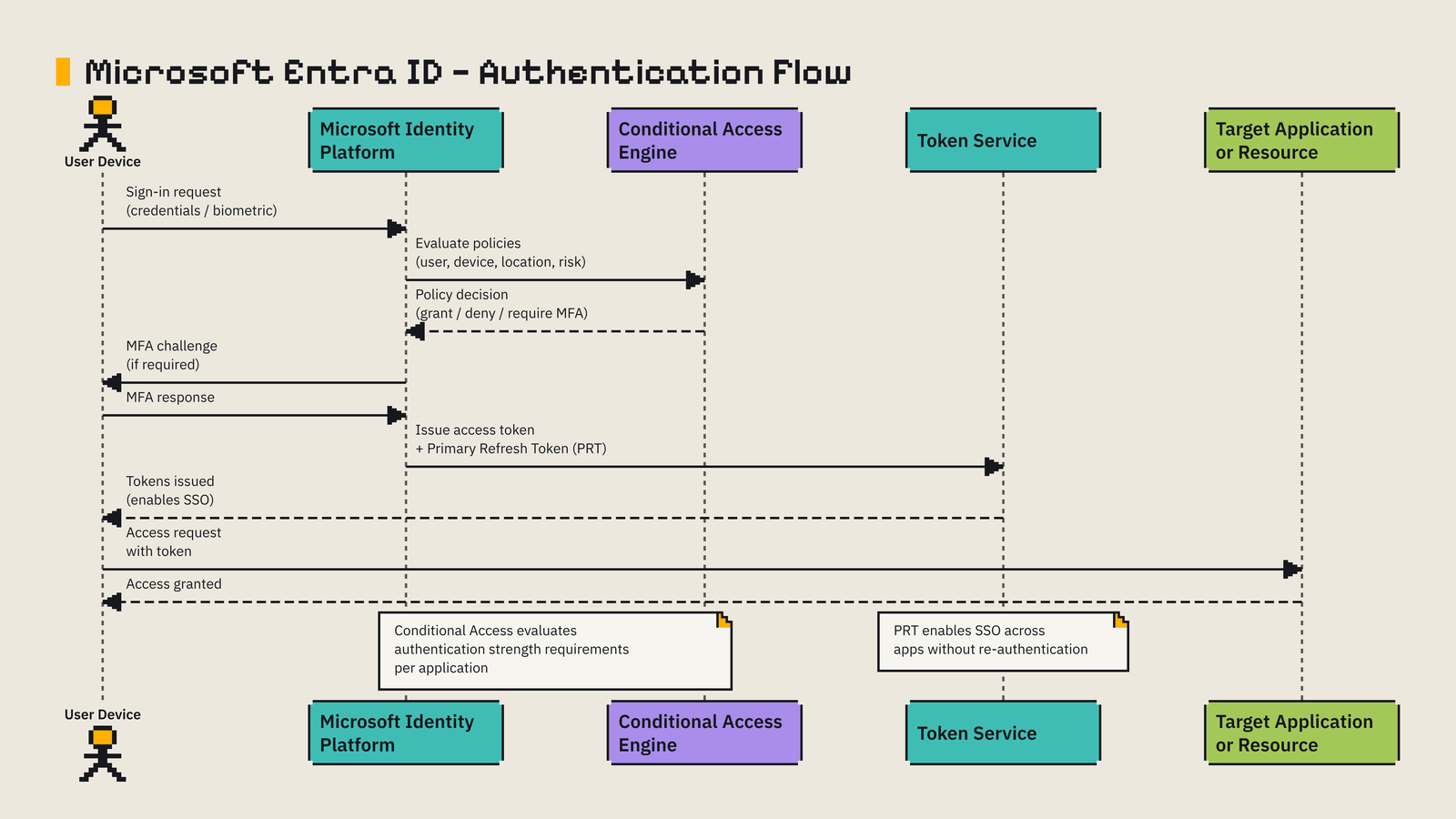
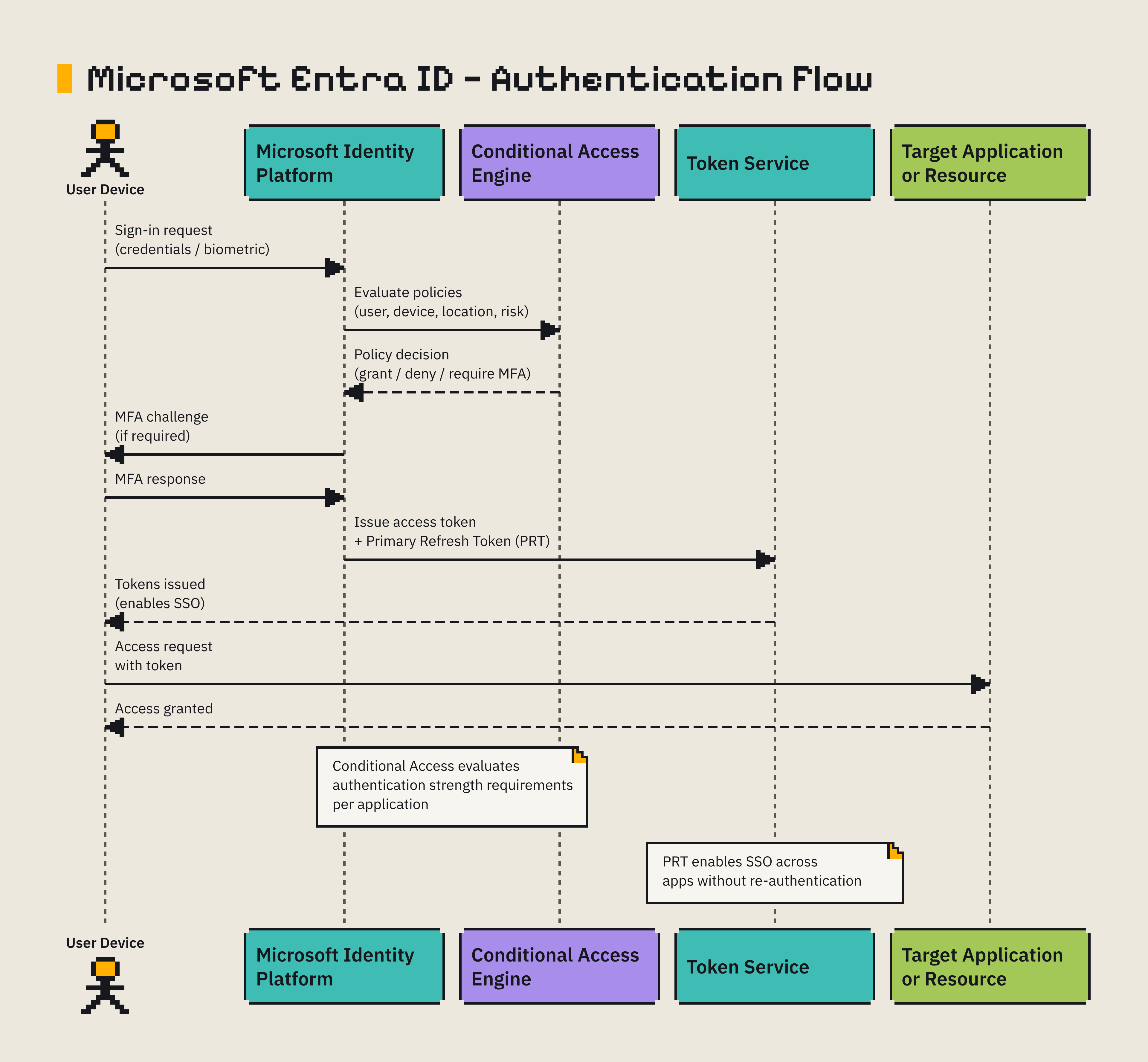
When a user signs in, the request flows through the Microsoft Identity platform, the authentication engine behind Microsoft Entra ID. The platform evaluates user’s credentials, applies Conditional Access policies, and issues tokens upon successful authentication.
If you have any devices that are joined to Microsoft Entra ID, a Primary Refresh Token is issued after the first time you sign-in. This PRT enables single sign-on (SSO) across applications and services without requiring you to re-authenticate. This helps user experience (imagine having to sign-in each time!) and helps improve security thanks to stronger authentication methods.
Deploying MFA with the right enforcement model.
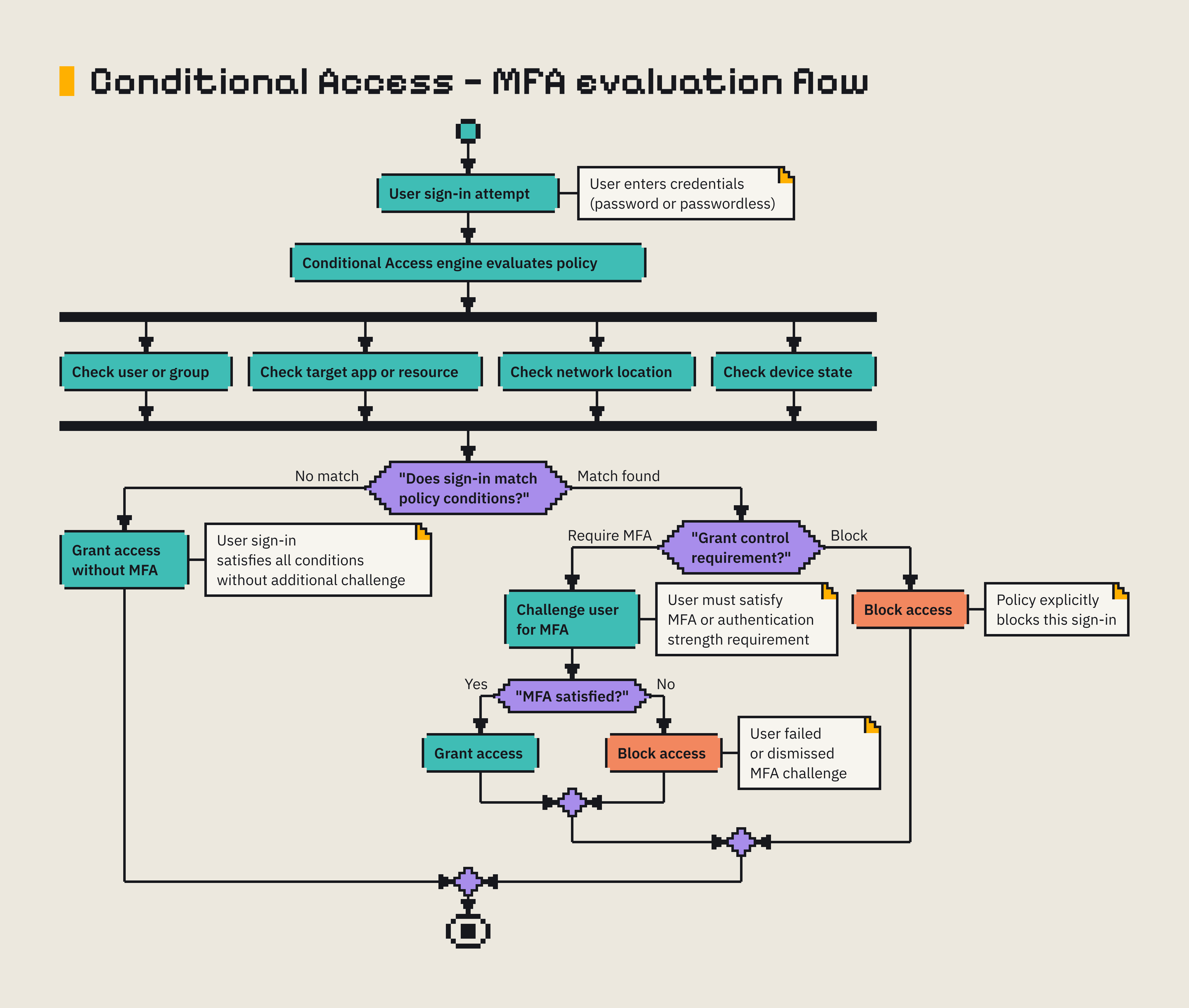
Conditional Access gives us precise control over when MFA is required. We create a policy, target users or groups, select cloud applications or user actions, and then set the grant control to Require multifactor authentication.
The policy evaluates each sign-in and applies MFA only when the conditions you have defined match. Here’s how the MFA evaluation flow works:
Named locations and trusted IP boundaries
We can refine our Conditional Access policies by defining named locations. These are logical groupings of IP ranges or areas that represent trusted boundaries, such as corporate offices and VPN egress addresses.
When we use named locations in Conditional Access, we can reduce the friction for trusted sign-ins while still requiring MFA for sign-ins outside those defined trusted boundaries.
Named locations are recommended for trusted IP configuration because they support IPv6 and they integrate with all Conditional Access conditions. The Trusted IP setting is available, but it doesn’t support IPv6.
Configuring authentication methods that match risk
After we decide when MFA is required, we can configure which methods users can use through the Authentication methods policy:
- Microsoft Authenticator should be the primary method for most users.
- OATH tokens are useful for users in regulated environments, or for users who can’t use a smartphone.
- SMS and voice calls can be used as a backup, however be mindful that these are vulnerable to attacks such as SIM swapping.
- Third-party OATH tokens are useful if your organization already has a token rollout process.
Passwordless authentication in Microsoft Entra ID
Passwordless authentication is better than using MFA for two reasons. It removes the need for users to remember a password, and it helps users sign-in faster.
Microsoft Entra ID supports multiple passwordless methods, which you can assign by persona.
| Persona | Recommended method | Alternative |
|---|---|---|
| Administrators and regulated users | FIDO2 security key | Windows Hello for Business |
| Office workers on corporate Windows devices | Windows Hello for Business | Passkey in Microsoft Authenticator |
| Mobile and cross-platform users | Passkey in Microsoft Authenticator | Synced passkey |
| Frontline or shared-device workers | FIDO2 security key | Passkey in Microsoft Authenticator |
| BYOD users | Synced passkey or Authenticator passkey | FIDO2 security key |
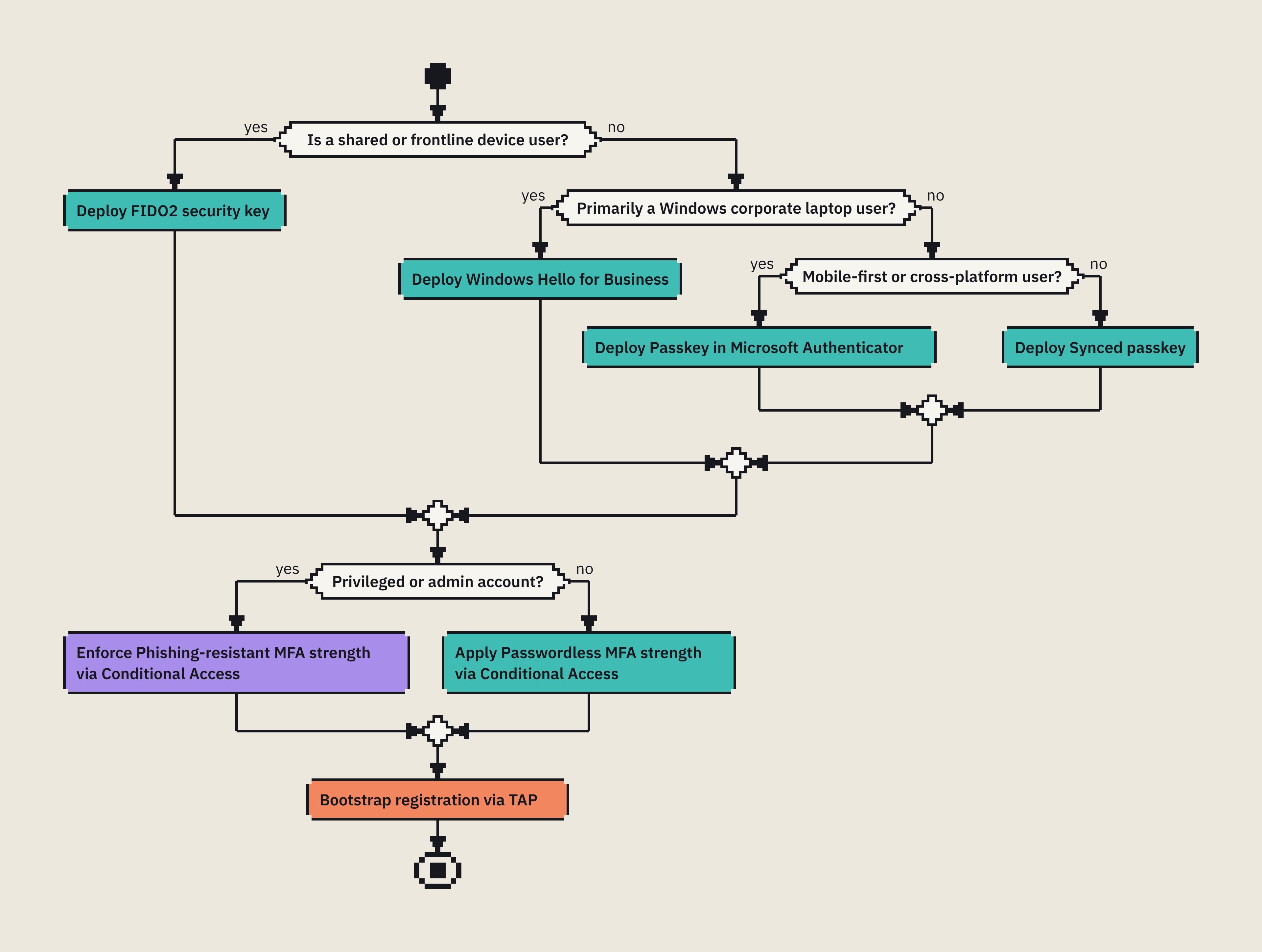
Windows Hello for Business creates a cryptographic credential protected by device hardware and unlocked locally with a PIN or biometric gesture. The level of phishing resistance is high because no password is sent during sign-in. Windows Hello for Business is best for Microsoft Entra joined or hybrid joined Windows devices managed by Intune or Group policies.
For privileged administrator, regulated users, and shared workstation environments, use FIDO2 security keys which provide strong phishing resistance and are not tied to one device.
Passkeys in Microsoft Authenticator provides a portable phishing-resistant credential which is hardware-backed on your mobile device and you can unlock it with a biometric or PIN.
For users with multiple personal devices, you can implement synced passkeys. This is ideal for lower-risk users where usability is a problem.
Applications that use Microsoft Entra ID with OAuth 2.0/OpenID Connect can use passwordless sign-ins without changes to their code. For non-human identities and backend services:
- Use managed identities for workloads in Azure
- Use certificate-based authentication rather than long-lived client secrets if you can’t use managed identities.
- Apply workload identity controls and monitoring to high-privilege service principals.
Configure self-service password reset in Microsoft Entra ID.
Like I mentioned earlier, not all organizations can switch to passwordless authentication methods. Self-service password reset (SSPR) is a great feature to help users reset their own passwords, and reduce the amount of requests your poor support team gets to reset passwords!
Before users can reset their own passwords, you need to enable it. In the Microsoft Entra admin center, you can choose the following SSPR scopes:
- None, which means SSPR is disabled for all users.
- Selected, which means SSPR is enabled for members of a specific security group.
- All, meaning all users inside the tenant can use SSPR.
SSPR and Password writeback are available on Microsoft Entra ID P1, P2, and Microsoft 365 Business Premium licenses. These features aren’t available on the Free license.
You can configure SSPR methods in the Entra admin center. It’s best to require 2 methods for reset to reduce the risk of account takeover, and avoid using security questions as a primary method.
Administrator accounts have stricter reset protections than standard users. They must use two authentication methods for reset, and email-based reset isn’t recommended in case their mailbox is compromised. Place privileged accounts in a dedicated group, and then apply stricter SSPR method controls to that group.
Conclusion
Hopefully now you have a better understanding on how we can implement modern authentication methods in Microsoft Entra ID that both improves security and usability.
We learnt how MFA with Conditional Access enforces stronger verification based on context, we learnt how passwordless methods work and how we can apply different methods to different kinds of users, and we learnt how self-service password reset works and how it helps users recover their access quickly without bothering support desk staff with mundane requests!
If you have any questions, feel free to reach out to me on X @willvelida or on Bluesky
Until next time, Happy coding! 🤓🖥️