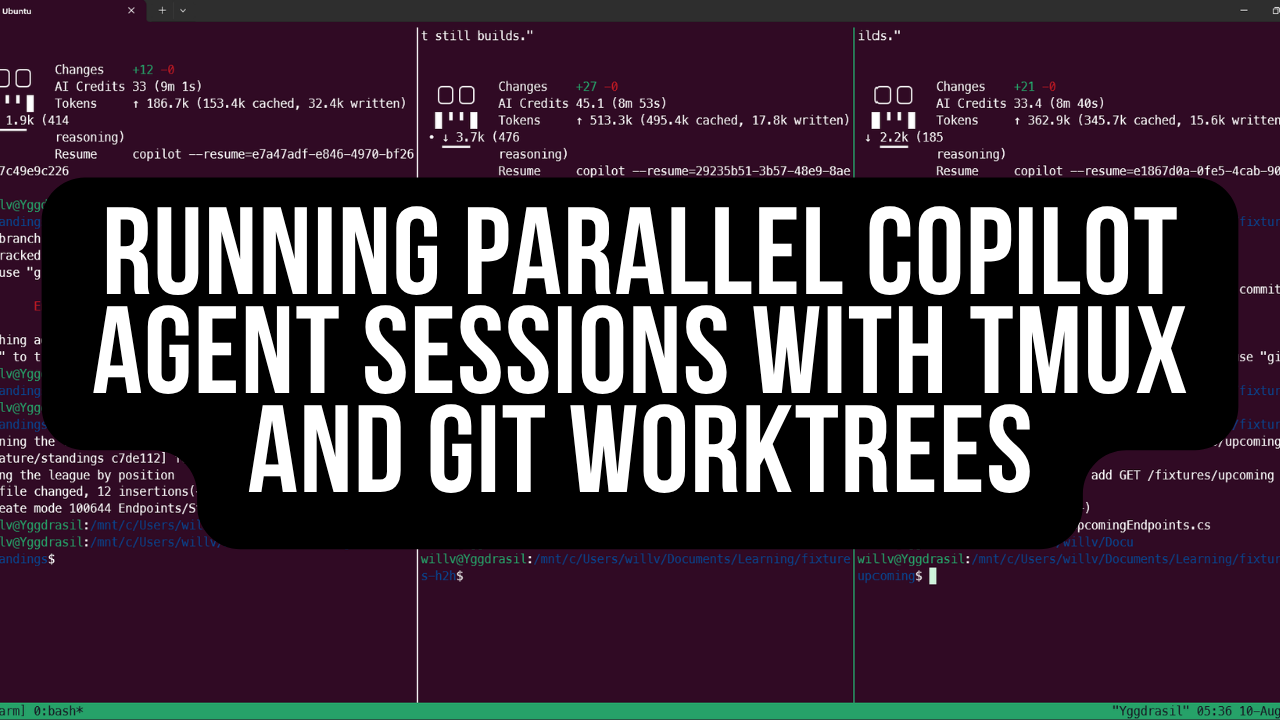
When I first started using GitHub Copilot, I kept to the chat window, as I wasn’t too comfortable with the idea of using the CLI for long prompts. The chat interface in VS Code was more friendly and intuitive for me, and I felt more in control using the chat UI.
Over time, I’ve been using GitHub Copilot CLI more often. As the scope of work increases (and as demand from stakeholders also increases!), I’ve found myself firing up multiple terminals to do multiple different tasks on a project. However, I’ve had to be careful about how I’ve done that, as I didn’t want to have to deal with the trouble of merge conflicts only made worse by overzealous coding agents!
A colleague of mine suggested that I take a look at tmux and git worktrees as a method to safely work on multiple features within the same repository, and use the GitHub Copilot CLI to use agents to work on each worktree without compromising the others work. I’d never used tmux before, nor had I really used git worktrees in anger before, so this seemed like the perfect excuse to hack with it and learn something new.
What is tmux?
tmux is a terminal multiplexer that allows you to create, access, and control any number of terminals from a single screen.
What’s different about just splitting the terminal or creating a new tab in Windows Terminal is that with tmux, you can detach from a session and reattach later through persistence. The running processes stay alive across disconnects and reboots. This is great for remote work, because if the connection drops, you can pick up exactly where you left off.
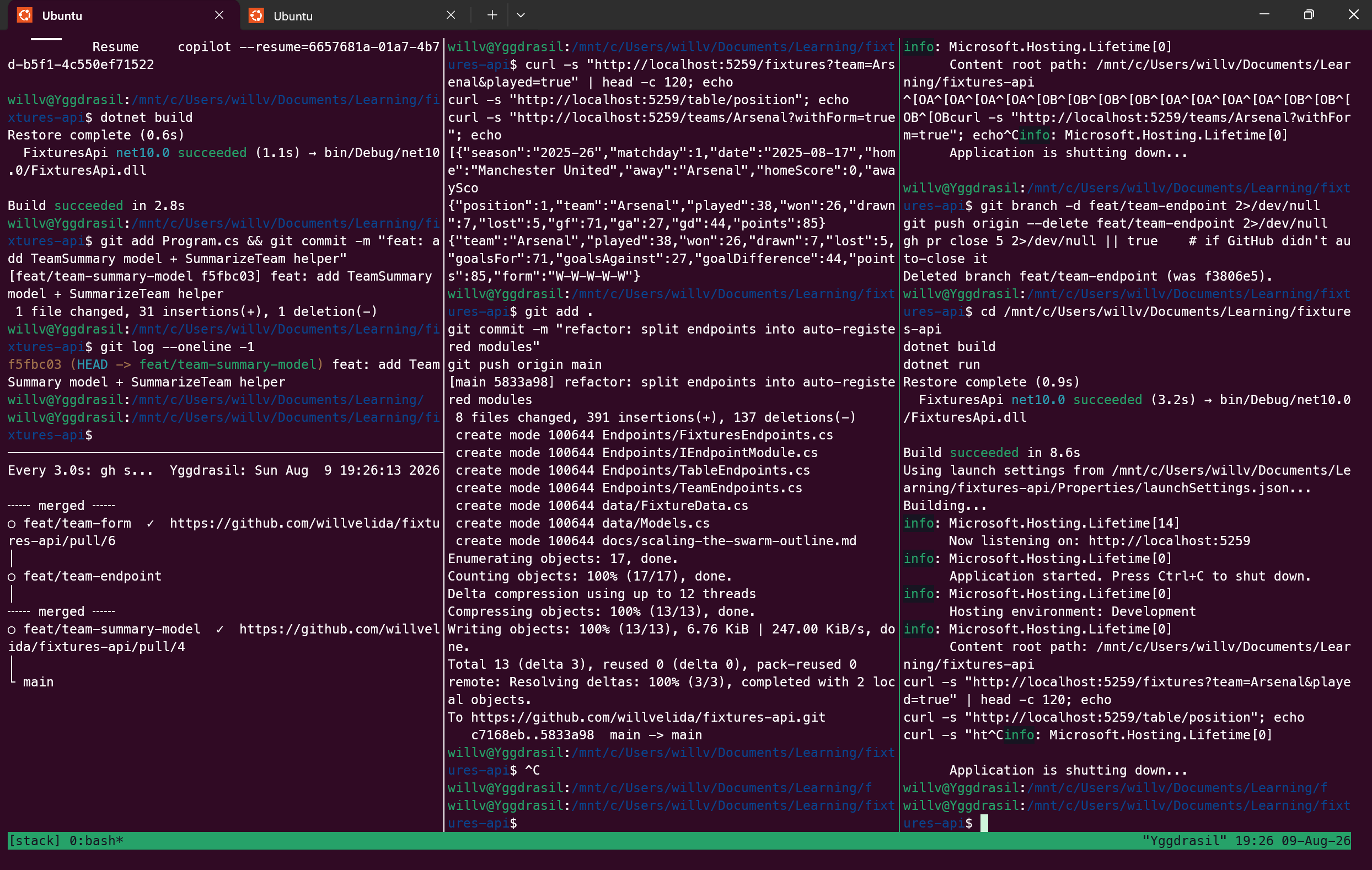
Persistent workspaces that survive disconnects are enabled through Sessions, which is just a collection of Windows. Windows are like tabs in a browser, where each can contain multiple panes and has its own command history. Panes split windows into multiple terminals.
tmux isn’t exactly new. It was built in 2007 (remember life before the GFC? Pepperidge Farm remembers), so why use it for coding agents?
Why use tmux for agentic coding?
tmux has some pretty great features that are ideal for agentic coding workflows.
tmux’s persistence model is particularly handy when agents are running long processes within a session. Imagine you’re using GitHub Copilot to do a big refactor of your code, and half-way through the terminal got killed. With tmux, we can prevent this by detaching from our session, and reattaching later.
Each pane provides its own PTY, which is great for isolating agents from each other. The changes that Agent 1 makes can’t step on the work that Agent 2 is doing. Being able to split the window and watch every agent work at the same time is also aesthetically pleasing.
Running this on WSL2
I’m running on a Windows machine, so I have to use tmux through WSL2. This isn’t a bad thing, it’s just that tmux doesn’t run natively on Windows.
GitHub Copilot CLI runs on WSL2, so I thought I’d just set everything up on WSL2.
There is a native substitute called psmux if you’re not comfortable with WSL2, but the rest of this guide will assume that you’re running in WSL2.
What you’ll need
I’m going to assume that you already have WSL2 installed. If you do, then you can use sudo apt install to install the following packages:
sudo apt install -y git tmux curl
For the GitHub Copilot CLI, that ships as an npm package. So if you need to install node on WSL2, you can do so using this command:
curl -fsSL https://deb.nodesource.com/setup_lts.x | sudo -E bash -
sudo apt install -y nodejs
node --version
Once you have node installed, install the CLI like so:
npm install -g @github/copilot
copilot --version
I also had to update the GitHub CLI so that I could open and merge PRs. I’m using Ubuntu as my distro, so I ran the following:
(type -p wget >/dev/null || sudo apt install wget -y)
sudo mkdir -p -m 755 /etc/apt/keyrings
wget -qO- https://cli.github.com/packages/githubcli-archive-keyring.gpg \
  | sudo tee /etc/apt/keyrings/githubcli-archive-keyring.gpg > /dev/null
sudo chmod go+r /etc/apt/keyrings/githubcli-archive-keyring.gpg
echo "deb [arch=$(dpkg --print-architecture) signed-by=/etc/apt/keyrings/githubcli-archive-keyring.gpg] https://cli.github.com/packages stable main" \
  | sudo tee /etc/apt/sources.list.d/github-cli.list > /dev/null
sudo apt update
sudo apt install -y gh
gh auth setup-git      # so git push over HTTPS uses your gh credentials
gh --version
I’m also using Windows Terminal to run tmux inside that. This can be installed on Windows using WinGet:
winget install --id Microsoft.WindowsTerminal -e
Some tmux basics
Let’s do a basic tour of tmux commands that I’ll use in this blog post. We can start a new session like so:
tmux new -s tutorial # tutorial is the name of the session I've created
tmux uses Ctrl+b as the prefix key, and then you’d enter the command key to do something.
So if we want to split a pane, we can use Ctrl+b % to create a new pane left or right, or Ctrl+b " to create a pane top or bottom.
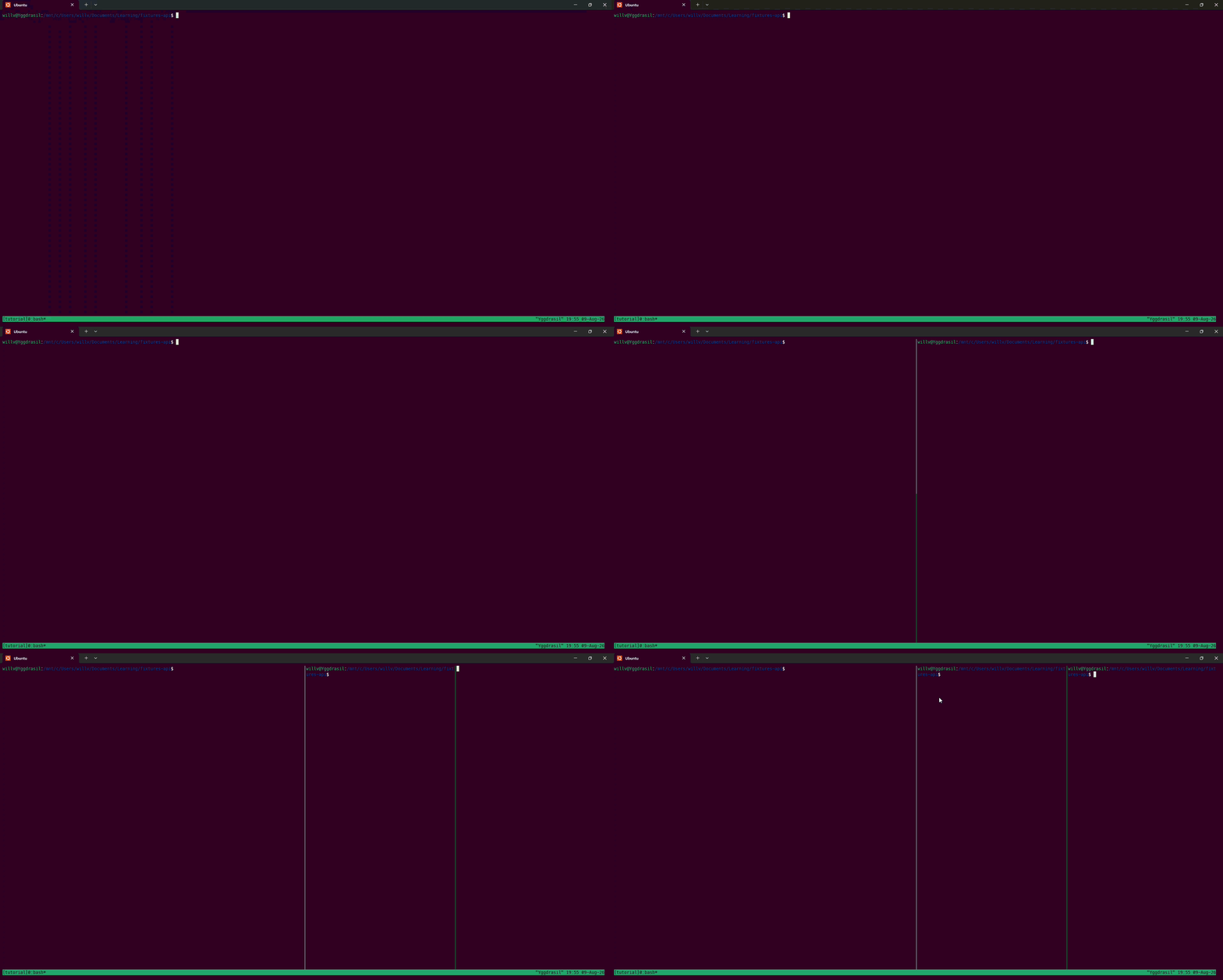
You can tidy the panes up by entering Ctrl+b :select-layout even-horizontal. There are other layout styles that you can as well. I find it easier to use Ctrl+b space to cycle through different layout options.
To detach a session, enter Ctrl+b d, then you can use the tmux sessions using tmux ls and then reattach using tmux attach -t <session-name>!
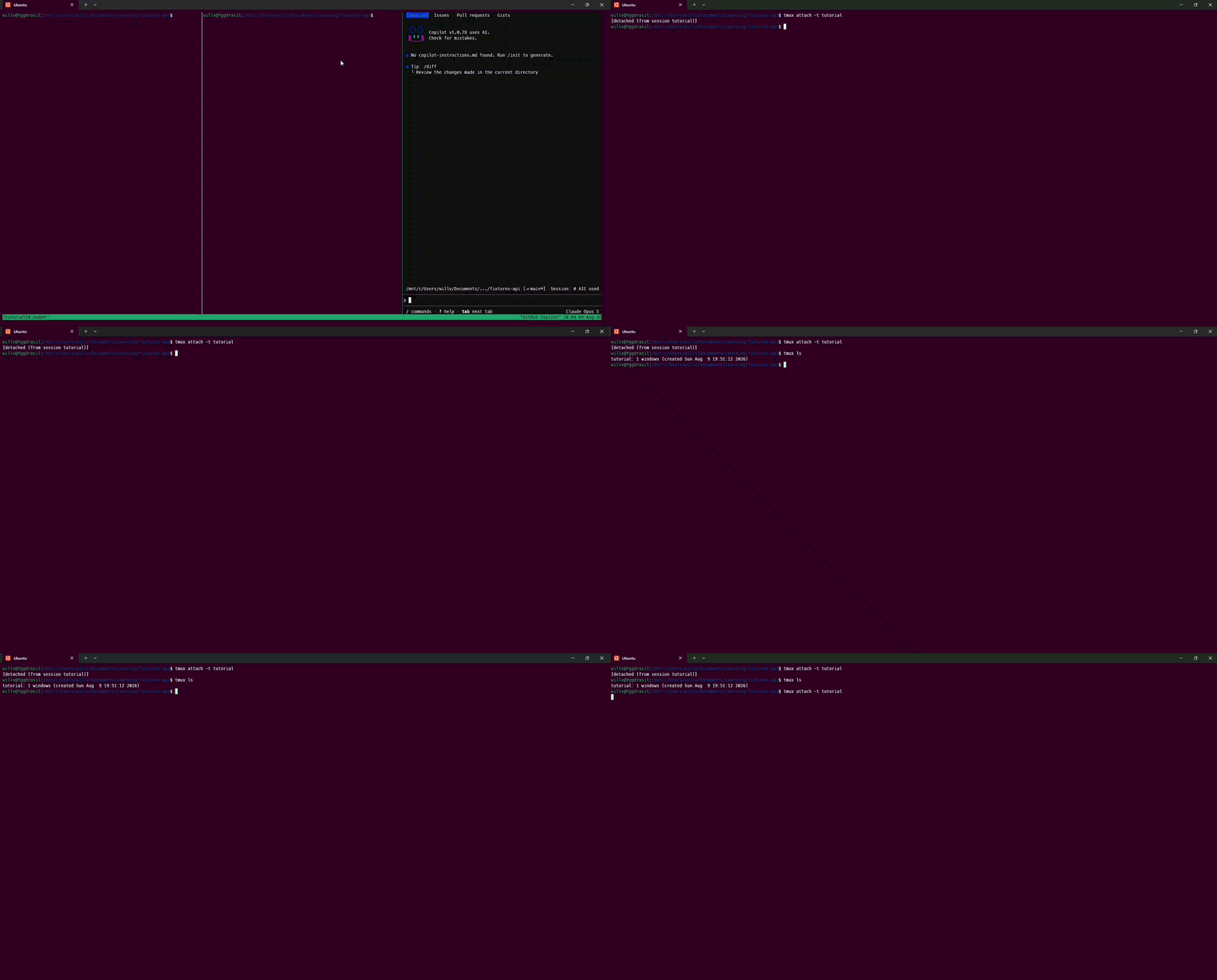
There’s a lot more to it than just these basics. This blog post talks about how you can edit config for tmux to add features like mouse support, and there are more commands that tmux provides.
Giving each agent its own workspace with git worktrees
Git worktrees allow you to check out multiple branches from a repo at a time, with its own isolated directory, but sharing the same .git directory. This provides our agents with a reasonable amount of isolation since each worktree has its own directory, this will prevent autonomous agents editing the same directory from stepping on each other’s toes (do agents have toes? No, it’s a transformer model. It’s just an expression) and creating merge conflicts in real time.
I have an API that I’m building for viewing past Arsenal results, and preparing for upcoming matches so I can export them into various calendars. For this API, I want to build the following endpoints:
GET /tablereturns the full league table, ordered by position.GET /fixtures/h2h?teamA=&teamB=returns every match between two named teams.GET /fixtures/upcoming (optional ?team=)returns the fixtures that have not been played yet.
Using git worktrees, each will check out into its own folder while sharing the API repository. This isolation gives each GitHub Copilot CLI instance its own workspace, so they won’t overwrite each other in the middle of their work.
Let’s set up our worktrees for the features we want to implement:
git worktree add -b feature/standings ../fixtures-standings
git worktree add -b feature/h2h       ../fixtures-h2h
git worktree add -b feature/upcoming  ../fixtures-upcoming
git worktree add creates a new worktree. -b feature/standings creates a new branch called feature/standings and ../fixtures-standings creates a sibling folder next to our repository, not inside it. This prevents git from getting confused about which repository owns what.
To see the list of worktrees that we have created, we can run the following:
git worktree list
# produces the following output
willv@Yggdrasil:/mnt/c/Users/willv/Documents/Learning/fixtures-api$ git worktree list
/mnt/c/Users/willv/Documents/Learning/fixtures-api        dc738bd [main]
/mnt/c/Users/willv/Documents/Learning/fixtures-h2h        dc738bd [feature/h2h]
/mnt/c/Users/willv/Documents/Learning/fixtures-standings  dc738bd [feature/standings]
/mnt/c/Users/willv/Documents/Learning/fixtures-upcoming   dc738bd [feature/upcoming]
Running multiple GitHub Copilot agents in parallel
With our worktrees created, we can now create a new tmux session and split it into panes for each of our worktrees:
tmux new -s swarm
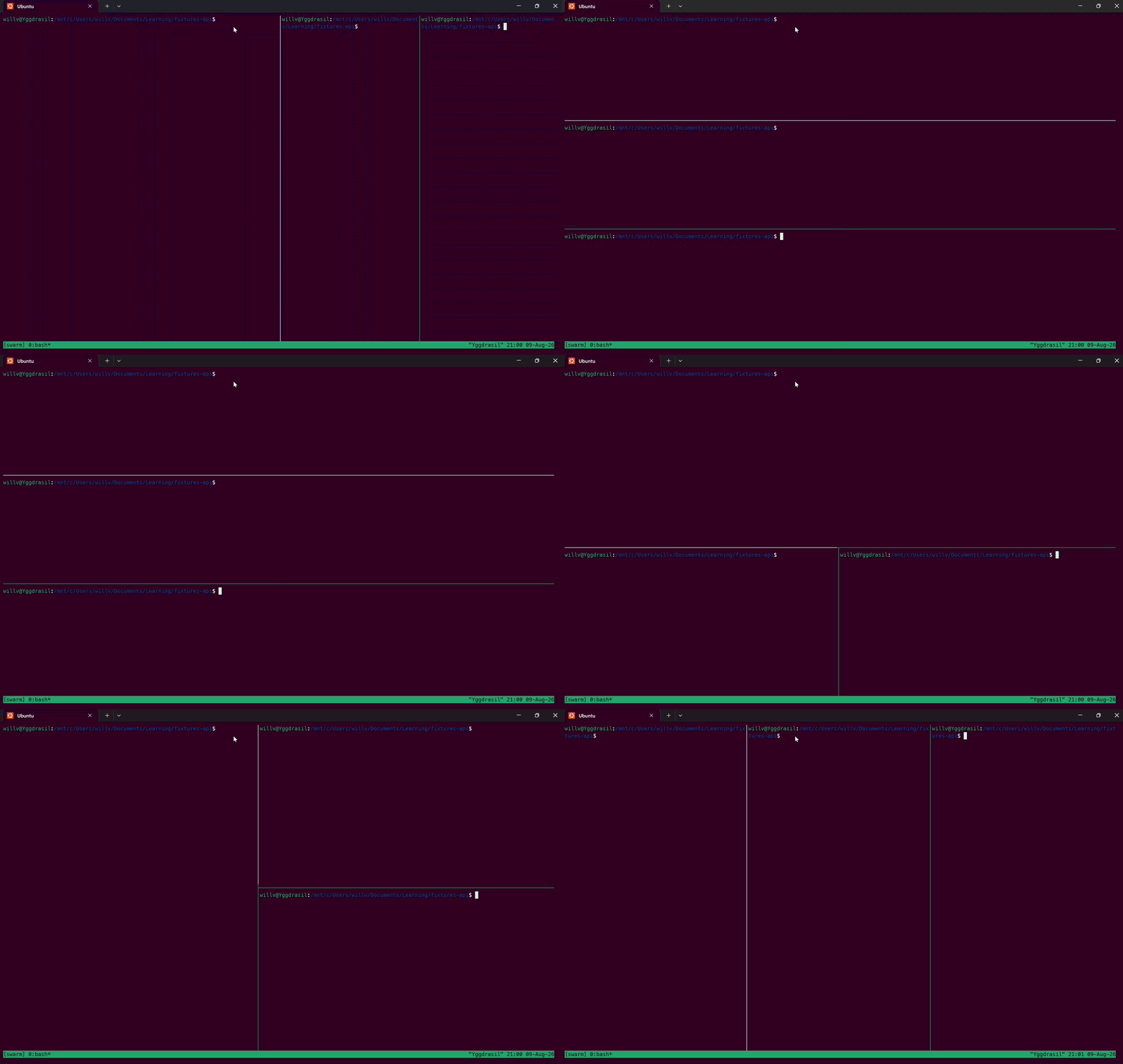
Create three new panes using Ctrl+b % and style the layout how you want. Then within each pane, we’d cd into each worktree. Using my worktrees:
# In pane 1
cd /fixtures-standings
# In pane 2
cd /fixtures-h2h
# In pane 3
cd /fixtures-upcoming
You can move between panes using Ctrl+b then an arrow key.
Within each pane, you can confirm that the folder and branch are correct by running the following:
pwd && git branch --show-current
Within each CLI session, it’ll pause to ask permissions before editing files or running commands like dotnet build. If you want to run these without having to press enter each time Copilot asks you for something, you can add --allow-all-tools to the command. I’m still not 100% comfortable with just YOLOING in agentic coding sessions, but this is just a demo and we can have some fun with it 😅

For each pane, I ran the following prompts:
# pane 1
copilot --allow-all-tools -i "Add Endpoints/StandingsEndpoints.cs implementing IEndpointModule (see Endpoints/IEndpointModule.cs), mapping GET /table that returns FixtureData.Standings ordered by position. Inject FixtureData via the constructor pattern the other modules use. New file only, do not edit Program.cs. Make sure the project still builds."

# pane 2
copilot --allow-all-tools -i "Add Endpoints/HeadToHeadEndpoints.cs implementing IEndpointModule (see Endpoints/IEndpointModule.cs), mapping GET /fixtures/h2h?teamA=&teamB= that returns every match from FixtureData.Matches where those two teams met (either could be home or away). Inject FixtureData. New file only, do not edit Program.cs. Make sure the project still builds."

# pane 3
copilot --allow-all-tools -i "Add Endpoints/UpcomingEndpoints.cs implementing IEndpointModule (see Endpoints/IEndpointModule.cs), mapping GET /fixtures/upcoming with an optional ?team= filter, returning matches from FixtureData.Matches where Played is false, ordered by matchday. Dates may be null for those fixtures, so do not sort by date. Inject FixtureData. New file only, do not edit Program.cs. Make sure the project still builds."
Press enter to send those prompts and watch the agents do their thing!
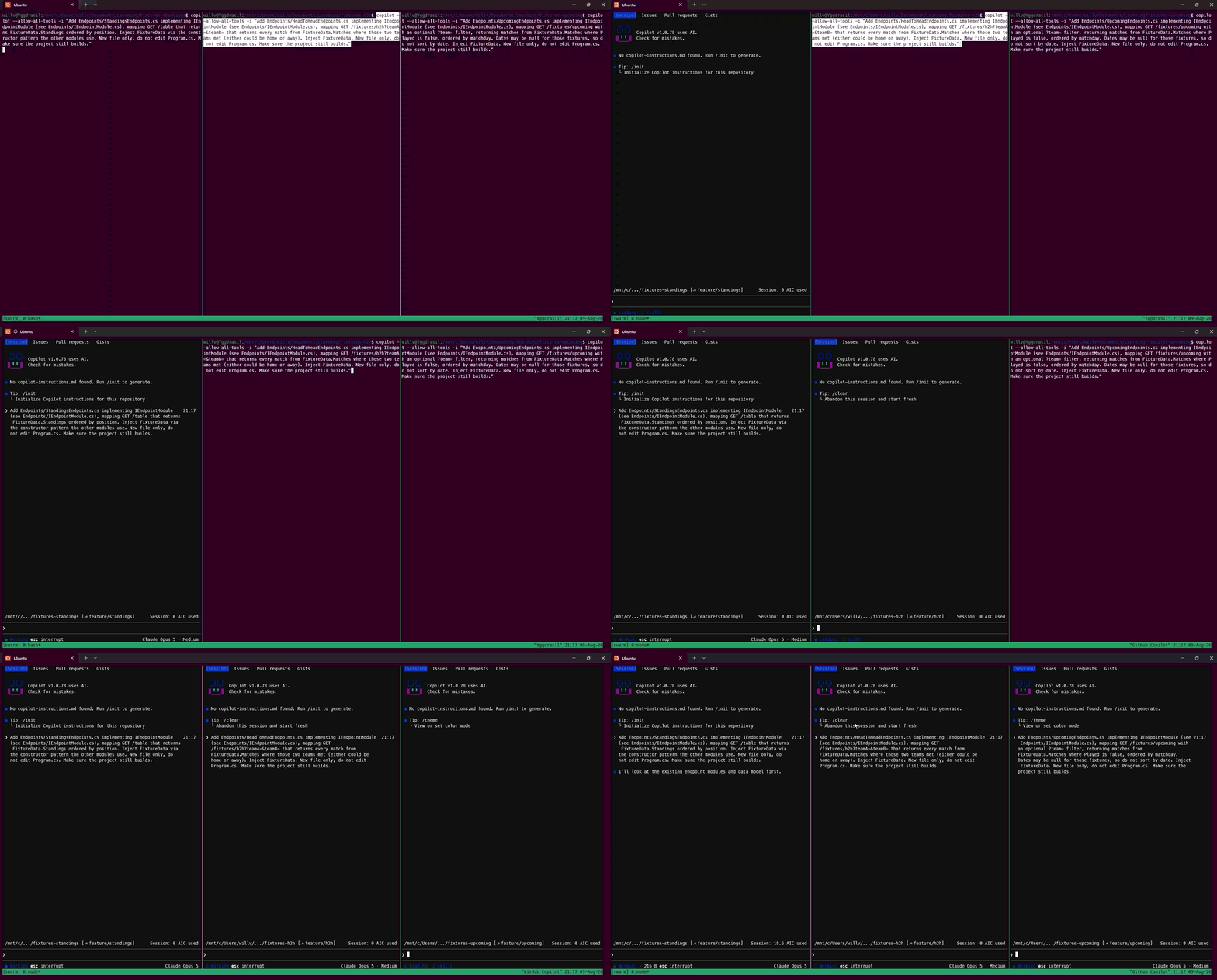
If you need to step away and you don’t want to lose them, you can always use Ctrl+b d to detach the session, and then use tmux attach to come back. Remember that the session lives on the machine, so we can pick up the same session on a different terminal, or even ssh into the machine and start the session from there.
Reviewing our changes
Once our agents have finished making their changes, we need to make sure that we can merge the changes back into main, and that there aren’t any conflicts between the different branches and main. This is where git worktrees can be advantageous, since they have their own working directory.
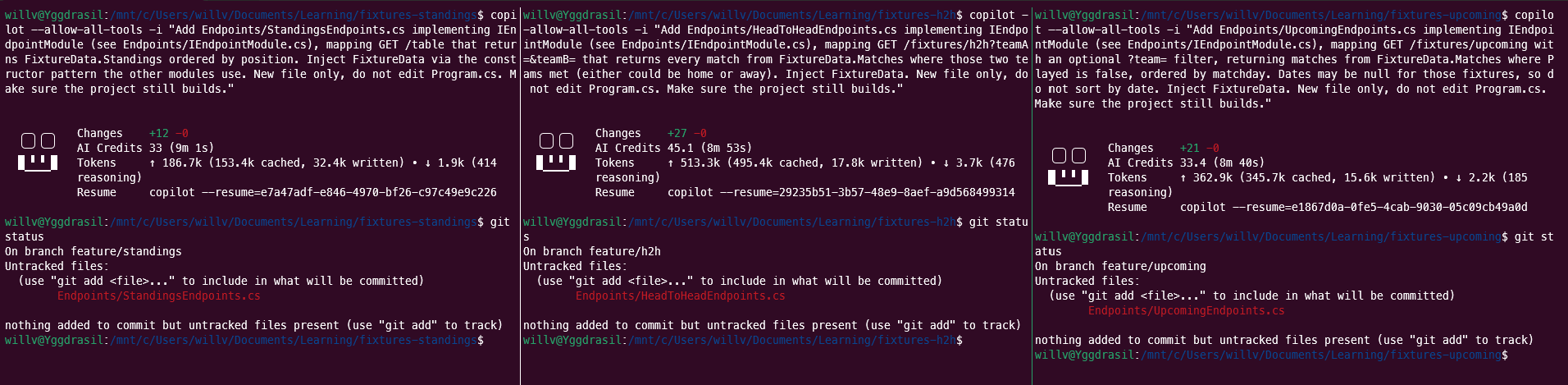
Because our worktrees are isolated, we can commit the changes as the changes that the agents have made don’t conflict with each other. Once we’ve committed the changes, we can raise a PR for each worktree.
cd /mnt/c/Users/willv/Documents/Learning/fixtures-api
git push -u origin feature/standings feature/h2h feature/upcoming
Then we can open a PR for each of our worktrees using --head to name the branch.
gh pr create --base main --head feature/standings \
  --title "feat: add GET /table standings endpoint" \
  --body "Adds Endpoints/StandingsEndpoints.cs (IEndpointModule) mapping GET /table, returning the league table ordered by position. New file only; Program.cs untouched."

gh pr create --base main --head feature/h2h \
  --title "feat: add GET /fixtures/h2h endpoint" \
  --body "Adds Endpoints/HeadToHeadEndpoints.cs (IEndpointModule) mapping GET /fixtures/h2h?teamA=&teamB=, returning matches between the two teams. New file only; Program.cs untouched."

gh pr create --base main --head feature/upcoming \
  --title "feat: add GET /fixtures/upcoming endpoint" \
  --body "Adds Endpoints/UpcomingEndpoints.cs (IEndpointModule) mapping GET /fixtures/upcoming (optional ?team=), unplayed fixtures ordered by matchday. New file only; Program.cs untouched."
We can use the gh CLI to see the PRs that we’ve just raised!
gh pr list
The output should look something like this:
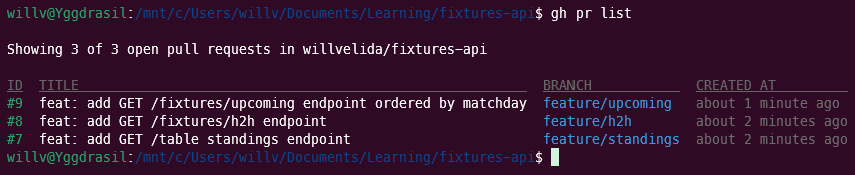
We can then merge each PR using the gh CLI:
gh pr merge feature/standings --squash
gh pr merge feature/h2h       --squash
gh pr merge feature/upcoming  --squash
Once everything has been merged, we can bring the squashed commits down to our local main:
cd /mnt/c/Users/willv/Documents/Learning/fixtures-api
git checkout main
git pull
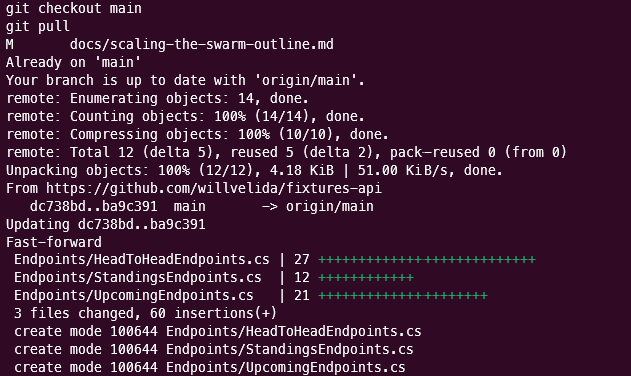
Then, confirm and build everything to make sure it all works:
git log --oneline -5     # three new squash commits on main
ls Endpoints/            # all three endpoint files present
dotnet build             # green
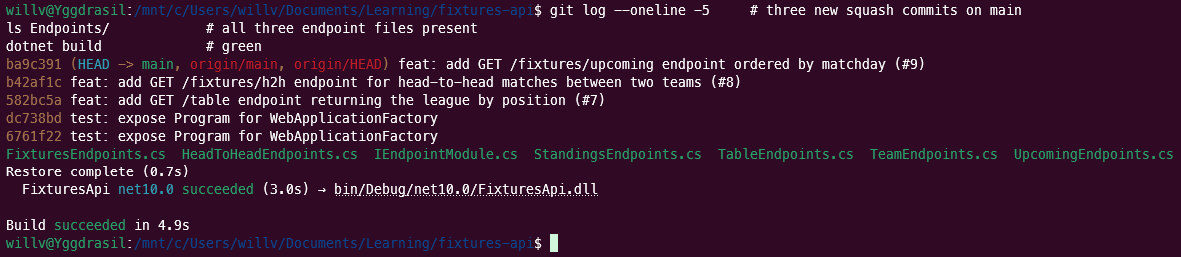
Once you’re satisfied that everything looks good, you can clean up the worktrees like so:
git worktree remove ../fixtures-standings
git worktree remove ../fixtures-h2h
git worktree remove ../fixtures-upcoming
git worktree prune
git worktree remove deletes each sibling folder and frees its branch. Once that’s done, the merged branches are safe to delete (both locally and remote):
git branch -d feature/standings feature/h2h feature/upcoming
git push origin --delete feature/standings feature/h2h feature/upcoming
If you run git worktree list or git branch again, you should only see the main branch.
Conclusion
Combining tmux and git worktrees has given me the confidence to run multiple coding agents simultaneously without them trampling on each other’s branches. tmux gives us session persistence and isolation, and git worktrees give each agent a clean workspace to work with, preventing agents from overwriting each other’s changes.
Bear in mind that this is just the basics. There’s a lot more that we can build on here, including extending orchestration tools, and scaling past just a couple of agents. As always though, this is AI-assisted engineering, not a replacement. Make sure that you have sufficient guardrails in place so that your agent swarms don’t cause production faults! You’re still getting that call at 2am when shit goes sideways!
If you have any questions about this, please feel free to reach out to me on Bluesky!
Until next time, Happy coding! 🤓🖥️