Introduction: The Identity Problem with AI Agents
AI agents are moving beyond simple prompt-and-response. They’re calling APIs, reading databases, writing to storage etc. Doing actions on real resources with real consequences. This raises a question every platform team eventually asks: whose identity should the agent use?
Today, most agents authenticate to Azure services one of two ways:
- Delegated (on-behalf-of-user): The agent acts as the signed-in user. This can work for interactive scenarios, but it means the agent inherits all of the user’s permissions. Which far more than a narrowly-scoped tool call should need. It also falls apart for background or autonomous agents that run without a user session.
- App-only (managed identity or client credentials): The agent authenticates as the hosting application. This solves the “no user present” problem, but now every agent running on the same compute shares a single identity. You can’t distinguish which agent accessed which resource in your logs. You can’t give one agent read-only access to Cosmos DB while another gets read-write. The agent is the app, as far as Azure is concerned.
Neither option gives you what you actually want: a discrete, auditable identity for the agent itself. One that’s separate from the user, separate from the hosting infrastructure, and scoped to exactly the permissions the agent needs.
That’s the problem Microsoft Entra Agent ID solves.
Entra Agent ID introduces a new kind of identity in the Microsoft identity platform: an agent identity, represented as its own service principal with its own appId. You can assign Azure RBAC or data-plane roles directly to the agent. Tokens carry the agent’s identity, so audit logs show that the agent accessed a resource, not just “the application.” And if you run multiple agents on the same compute, each gets its own identity with its own permissions.
In this post, I’ll walk through a complete, deployable sample that puts this into practice. You’ll see how to:
- Create an agent identity using the Entra Agent Identity Blueprint model.
- Configure the .NET Azure SDK to authenticate as the agent using
MicrosoftIdentityTokenCredentialwith.WithAgentIdentity(). - Call Azure Cosmos DB from an AI chat agent running on Azure Container Apps, where the agent authenticates under its own identity.
- Wire up tool calling with the Microsoft Agent Framework so the LLM’s function calls automatically trigger agent-identity-authenticated database operations.
The sample is an interactive chat application powered by Azure OpenAI (GPT-4o) that persists conversation history in Cosmos DB. The agent uses its own identity to read and write data, showcasing the autonomous agent token pattern end to end.
But let’s start by covering the basic concepts of Microsoft Entra Agent ID.
What is Entra Agent ID?
I covered the fundamentals of Entra Agent ID in a previous post, so I’ll keep this section focused on the concepts that matter for this sample. If you want the full deep dive (agent users, the agent registry, operation patterns) start there.
At its core, Microsoft Entra Agent ID extends the Microsoft identity platform to give AI agents their own discrete identities. As agents become more capable of making autonomous decisions, we need answers to some fundamental questions: How do we authenticate and authorize agents? How do we govern them? And how do we distinguish what an agent did from what a human or application did?
Entra Agent ID addresses this by introducing a set of identity objects purpose-built for agents. There are three you need to understand for this sample:
Agent Identity Blueprint
An agent identity blueprint is the template and management structure for creating agent identities. Think of it as the class to the agent identity’s instance. All agent identities in a Microsoft Entra tenant are created from a blueprint.
But blueprints aren’t just metadata containers. They’re also a special identity type in your tenant. A blueprint holds:
- An OAuth client ID and credentials, used to request access tokens from Entra ID.
- A special Microsoft Graph permission (
AgentIdentity.CreateAsManager) that enables the blueprint to create agent identities in the tenant. - OAuth2 permission scopes (like
access_agentin our sample) that downstream clients request when calling the agent’s API.
Blueprints also serve as logical containers for governance. Identity administrators can apply policies and settings to a blueprint that take effect for all agent identities created from it. And because blueprints hold the credentials (not individual agent identities), credential management is centralized.
Every blueprint needs a sponsor which a human user or group accountable for the agent. When security incidents happen, sponsors can be contacted to intervene. This administrative model separating technical ownership from business accountability is a core part of the Entra Agent ID design.
When you add a blueprint to a tenant, Entra creates a blueprint service principal (the “agent identity blueprint principal”). This principal serves two roles: it enables token issuance within the tenant, and it provides the identity that appears in audit logs for actions performed by the blueprint itself.
Agent Identity
An agent identity is a special service principal in Entra ID that represents a specific instance of an AI agent. It’s created from a blueprint (its parent) and gets its own id (object ID) and appId, both of which can be used for authentication and authorization.
Here’s what makes agent identities different from regular service principals:
- They don’t have passwords or any other credentials of their own. They authenticate by presenting an access token issued to the service or platform they run on. In our case, the managed identity of the Container App.
- They can be assigned Azure RBAC or data-plane roles independently. In this sample, the agent identity gets the Cosmos DB Built-in Data Contributor role, completely separate from the managed identity’s own role assignments.
- Tokens carry the agent’s identity. When the agent calls Cosmos DB, the
subclaim in the token is the agent identity’s service principal, not the managed identity, not the blueprint. Audit logs show exactly which agent accessed what.
This is the identity our sample uses when calling Cosmos DB. The agent identity doesn’t directly hold any credentials. Instead, the trust chain flows through the blueprint (which holds a federated identity credential linked to the managed identity) down to the agent identity.
Federated Identity Credential (FIC)
The federated identity credential is the bridge between your compute infrastructure and the agent identity system. It links a managed identity on your Container App to the agent identity blueprint, enabling a secretless token exchange.
Here’s how the chain works:
User-Assigned Managed Identity
   │
   │  Federated Identity Credential (subject = MI principal ID)
   ▼
Agent Identity Blueprint (app registration)
   │
   │  Parent-child relationship
   ▼
Agent Identity (service principal)
   │
   │  RBAC role assignment
   ▼
Azure Cosmos DB (data-plane access)
At runtime, when the API needs to call Cosmos DB as the agent:
- The Container App gets a token from its managed identity (via the IMDS endpoint).
Microsoft.Identity.Webpresents that MI token as a signed assertion to Entra ID’s token endpoint.- Entra ID validates the assertion against the FIC (checking that the subject matches the MI’s principal ID and the issuer is
login.microsoftonline.com). - Entra ID issues a new token (scoped to the agent identity) that the Cosmos SDK uses to authenticate.
No client secrets are stored anywhere. The managed identity’s token is the credential, exchanged through the FIC for an agent-scoped token.
Two operation patterns
Entra Agent ID supports two primary patterns for how agents authenticate:
- Interactive agents act on behalf of a signed-in user (delegated permissions). The token is a user token, the user is the subject, the agent is the actor.
- Autonomous agents act under their own identity, independent of any user session. The token is an agent token, the agent identity is the subject.
This sample uses the autonomous agent pattern. When the API calls Cosmos DB, it requests an app token (RequestAppToken = true) scoped to the agent identity. The agent acts on its own behalf, not the user’s. The user authenticates to the frontend, and the frontend calls the API with a delegated access_agent token but the API’s outbound call to Cosmos DB uses the agent’s own identity.
For a detailed walkthrough of creating blueprints and agent identities with PowerShell and .NET, including the Graph API calls, scope configuration, and the
IDownstreamApipattern, see my earlier post: Creating Entra Agent ID Blueprints and Identities with PowerShell and .NET.
To put these concepts into practice, I built a sample chat application that uses an agent identity to call Azure Cosmos DB. The full source is in the Azure-Samples/agent-identity-samples repo under call-azure-service.
The Sample: An AI Chat Agent That Calls Cosmos DB
The application has three main components:
┌─────────────────────┐       ┌──────────────────┐       ┌──────────────────────────┐
│                     │       │                  │       │                          │
│   Blazor Frontend   │──────►│   Chat Agent API │──────►│   Azure OpenAI Service   │
│   (Container App)   │ HTTPS │  (Container App) │       │   (GPT-4o)               │
│                     │       │                  │       │                          │
│  • MSAL auth        │       │  • JWT validation│       └──────────────────────────┘
│  • Chat UI          │       │  • Agent ID      │
│                     │       │    token cred    │       ┌──────────────────────────┐
│                     │       │  • Tool calling  │──────►│   Azure Cosmos DB        │
└─────────────────────┘       │                  │ Agent │   (conversations db)     │
                              │                  │  ID   │                          │
                              └──────────────────┘       └──────────────────────────┘
- Blazor Server frontend, a .NET 10 web app that handles user authentication via MSAL and OpenID Connect. Once signed in, users interact with a chat interface that sends messages to the API.
- Chat Agent API, a .NET 10 Minimal API that orchestrates conversations using Azure OpenAI (GPT-4o) with tool calling. The API uses the Microsoft Agent Framework to define tools as plain C# methods when the LLM wants to look up conversation history, it invokes a tool, and the framework handles the calling loop automatically.
- Azure Cosmos DB, stores conversation history (messages, sessions, search). This is the Azure service that the agent calls using its own identity.
Both the frontend and API run as Azure Container Apps sharing a user-assigned managed identity. The managed identity is the trust anchor that connects the compute infrastructure to the Entra Agent ID system via the federated identity credential we covered in section 2.
The key point: when the API calls Cosmos DB, it doesn’t use the managed identity directly. It uses MicrosoftIdentityTokenCredential configured with .WithAgentIdentity() to obtain a token scoped to the agent identity. Cosmos DB sees the agent. Not the app an not the user.
Setting Up the Agent Identity (Entra Configuration)
I covered the blueprint and agent identity creation process in depth in Creating Entra Agent ID Blueprints and Identities with PowerShell and .NET. Here I’ll highlight how the sample automates the entire flow through azd hooks so that azd up handles everything end to end.
The identity setup happens in two phases: pre-provision (before Azure infrastructure exists) and post-provision (after the managed identity and Cosmos DB are deployed).
Pre-provision: creating the blueprint
The hooks/preprovision.ps1 hook runs setup.ps1, which creates the blueprint, configures its scope, and creates its service principal, all via Microsoft Graph.
Creating the blueprint:
$body = @{
    "@odata.type" = "Microsoft.Graph.AgentIdentityBlueprint"
    "displayName" = $AgentBlueprintPrincipalName
    "sponsors@odata.bind" = @("https://graph.microsoft.com/v1.0/users/$($user.Id)")
    "owners@odata.bind" = @("https://graph.microsoft.com/v1.0/users/$($user.Id)")
} | ConvertTo-Json -Depth 5

$response = Invoke-MgGraphRequest `
    -Method POST `
    -Uri "https://graph.microsoft.com/beta/applications/graph.agentIdentityBlueprint" `
    -Body $body `
    -ContentType "application/json"
Configuring the access_agent scope:
$scope = @{
    adminConsentDescription = "Allow the application to access the agent on behalf of the signed-in user."
    adminConsentDisplayName = "Access agent"
    id                      = [guid]::NewGuid()
    isEnabled               = $true
    type                    = "User"
    value                   = "access_agent"
}

Update-MgBetaApplication -ApplicationId $applicationId `
    -IdentifierUris @("api://$applicationId") `
    -Api @{ oauth2PermissionScopes = @($scope) }
Creating the blueprint service principal:
$spResponse = Invoke-MgGraphRequest `
    -Method POST `
    -Uri "https://graph.microsoft.com/beta/serviceprincipals/graph.agentIdentityBlueprintPrincipal" `
    -Headers @{ "OData-Version" = "4.0" } `
    -Body (@{ appId = $applicationId } | ConvertTo-Json)
The script also creates a temporary client secret on the blueprint. This is needed in the post-provision phase to authenticate as the blueprint when creating agent identities (agent identity creation requires the blueprint’s own credentials, not delegated user permissions).
Post-provision: FIC, agent identity, and RBAC
After azd provision deploys the infrastructure, hooks/postprovision.ps1 completes the identity wiring.
Step 1: Federated Identity Credential. Links the managed identity to the blueprint so the Container App can authenticate as the blueprint:
$federatedCredential = @{
    Name      = "container-app-msi"
    Issuer    = "https://login.microsoftonline.com/$tenantId/v2.0"
    Subject   = $managedIdentityPrincipalId
    Audiences = @("api://AzureADTokenExchange")
}

New-MgBetaApplicationFederatedIdentityCredential `
    -ApplicationId $appId `
    -BodyParameter $federatedCredential
Step 2: Agent Identity. Uses the blueprint’s client credentials to acquire a token, then calls the agent identity creation endpoint:
# Acquire a token as the blueprint
$tokenBody = @{
    client_id     = $appId
    scope         = "https://graph.microsoft.com/.default"
    client_secret = $blueprintSecret
    grant_type    = "client_credentials"
}

$tokenResponse = Invoke-RestMethod -Method POST `
    -Uri "https://login.microsoftonline.com/$tenantId/oauth2/v2.0/token" `
    -ContentType "application/x-www-form-urlencoded" `
    -Body $tokenBody

# Create the agent identity
$agentBody = @{
    "@odata.type"              = "#Microsoft.Graph.AgentIdentity"
    "displayName"              = "chat-agent-cosmos"
    "agentIdentityBlueprintId" = $appId
    "sponsors@odata.bind"      = @("https://graph.microsoft.com/v1.0/users/$sponsorUserId")
} | ConvertTo-Json -Depth 5

$agentResponse = Invoke-RestMethod -Method POST `
    -Uri "https://graph.microsoft.com/beta/serviceprincipals/Microsoft.Graph.AgentIdentity" `
    -Headers @{
        "Authorization" = "Bearer $($tokenResponse.access_token)"
        "OData-Version" = "4.0"
    } `
    -Body $agentBody `
    -ContentType "application/json"
Step 2b: Cosmos DB role assignment. Grants the agent identity data-plane access to Cosmos DB:
az cosmosdb sql role assignment create `
    --account-name $cosmosAccountName `
    --resource-group $rgName `
    --role-definition-id "00000000-0000-0000-0000-000000000002" `
    --principal-id $agentSpObjectId `
    --scope $cosmosScope
The role definition ID 00000000-0000-0000-0000-000000000002 is the Cosmos DB Built-in Data Contributor role which is a data-plane role (not a standard Azure RBAC role) that grants read/write access to Cosmos DB data.
Step 3: Frontend app registration. Registers the Blazor frontend with a delegated access_agent permission to the blueprint, grants admin consent, and adds its own FIC so the frontend can also use the managed identity for token acquisition (no client secrets on the frontend either).
After all steps complete, the script re-provisions infrastructure to inject the newly created FRONTEND_APP_ID and AGENT_IDENTITY_ID into the Container App environment variables, which is how the .NET code picks them up at runtime.
Configuring the API to use Agent Identity
With the Entra objects in place, the .NET code to actually use the agent identity is surprisingly concise. It boils down to two integration points: service registration and credential configuration.
Service registration (Program.cs)
The API’s Program.cs wires up three services that work together:
builder.Services.AddAuthentication(JwtBearerDefaults.AuthenticationScheme)
    .AddMicrosoftIdentityWebApi(builder.Configuration.GetSection("AzureAd"))
    .EnableTokenAcquisitionToCallDownstreamApi()
    .AddInMemoryTokenCaches();

builder.Services.AddMicrosoftIdentityAzureTokenCredential();
builder.Services.AddAgentIdentities();
Here’s what each call does:
AddMicrosoftIdentityWebApisets up JWT bearer authentication. Incoming requests from the frontend must carry a valid token issued for the blueprint’saccess_agentscope. This also configures MSAL’s confidential client using the managed identity as the credential source (via theAzureAdconfiguration section).AddMicrosoftIdentityAzureTokenCredentialregistersMicrosoftIdentityTokenCredentialas a singleton in the DI container. This class implements Azure SDK’sTokenCredentialinterface, which means it can be passed directly to any Azure SDK client (Cosmos DB, Storage, Key Vault, anything that accepts aTokenCredential).AddAgentIdentitiesenables the.WithAgentIdentity()extension method on the credential’s options. Without this call, the agent identity extensions aren’t available.
Configuration (environment variables via Bicep)
Every value is injected as Container App environment variables by the Bicep template. .NET’s configuration system maps __-delimited environment variable names to nested JSON keys automatically, so AzureAd__ClientId maps to AzureAd:ClientId in code.
Here’s the relevant Bicep from the API’s Container App module:
env: [
  { name: 'AzureAd__Instance',                                    value: environment().authentication.loginEndpoint }
  { name: 'AzureAd__TenantId',                                    value: tenantId }
  { name: 'AzureAd__ClientId',                                    value: agentBlueprintAppId }
  { name: 'AzureAd__ClientCredentials__0__SourceType',             value: 'SignedAssertionFromManagedIdentity' }
  { name: 'AzureAd__ClientCredentials__0__ManagedIdentityClientId', value: managedIdentityClientId }
  { name: 'AgentIdentity__AgentIdentityId',                        value: agentIdentityId }
  // ... Cosmos, OpenAI, App Insights omitted for brevity
]
Two variables deserve a closer look:
AzureAd__ClientIdis set toagentBlueprintAppId, the blueprint’s app ID, not a traditional app registration. This tellsMicrosoft.Identity.Webto validate incoming tokens against the blueprint and to use the blueprint as the confidential client when acquiring outbound tokens.AzureAd__ClientCredentials__0__SourceTypeisSignedAssertionFromManagedIdentity, notClientSecret. This tells MSAL to use the managed identity’s token as a signed assertion for the FIC exchange. No secrets stored or rotated anywhere.
Because all values flow from Bicep parameters (which themselves come from azd environment values set during provision and post-provision), there’s nothing to configure manually. azd up handles it end to end.
Calling Cosmos DB with the agent identity (ConversationService.cs)
This is the core pattern from the official documentation. ConversationService receives the MicrosoftIdentityTokenCredential via constructor injection, then configures it for agent identity use each time it creates a Cosmos client:
private readonly MicrosoftIdentityTokenCredential _credential;

private CosmosClient GetCosmosClient()
{
    var agentIdentityId = _config["AgentIdentity:AgentIdentityId"]
        ?? throw new InvalidOperationException("AgentIdentity:AgentIdentityId is not configured.");

    // Configure the credential to act as the agent identity
    _credential.Options.WithAgentIdentity(agentIdentityId);

    // Request an app token (autonomous agent, not on-behalf-of)
    _credential.Options.RequestAppToken = true;

    var endpoint = _config["Cosmos:Endpoint"]
        ?? throw new InvalidOperationException("Cosmos:Endpoint is not configured.");

    return new CosmosClient(endpoint, _credential, new CosmosClientOptions
    {
        SerializerOptions = new CosmosSerializationOptions
        {
            PropertyNamingPolicy = CosmosPropertyNamingPolicy.CamelCase
        }
    });
}
The two lines that matter are:
.WithAgentIdentity(agentIdentityId)tells MSAL to include the agent identity’s app ID in the token request. Without this, you’d get a token for the blueprint, not the agent.RequestAppToken = truerequests a client-credentials-style token (no user context). This is the autonomous agent pattern. If you wanted the interactive agent pattern (on-behalf-of-user), you’d omit this or set it tofalse.
When the Cosmos SDK calls _credential.GetTokenAsync() under the hood, here’s what actually happens:
- MSAL uses the managed identity to get a signed assertion from the IMDS endpoint.
- MSAL presents that assertion to Entra ID’s token endpoint, exchanging it for a blueprint token via the FIC.
- Because
.WithAgentIdentity()is set, the token request includes the agent identity ID. Entra issues a token where thesubclaim is the agent identity’s service principal. - The Cosmos SDK sends this token as a
Bearerheader to Cosmos DB’s data plane. - Cosmos DB checks its SQL role assignments and finds that the agent identity has the Data Contributor role.
All of that happens behind three lines of configuration code. Every Cosmos DB operation in the sample (listing conversations, saving messages, searching history) flows through this same GetCosmosClient() method.
How Tokens Flow at Runtime
Now let’s trace what actually happens on the wire when GetCosmosClient() is called and the Cosmos SDK needs a token.
The five-step exchange
┌──────────────────────────────────────────────────────────────────────────┐
│ Container App (API)                                                     │
│                                                                         │
│  ConversationService.GetCosmosClient()                                  │
│      │                                                                  │
│      │  _credential.Options.WithAgentIdentity(agentIdentityId)          │
│      │  _credential.Options.RequestAppToken = true                      │
│      │  new CosmosClient(endpoint, _credential, ...)                    │
│      │                                                                  │
│      ▼                                                                  │
│  CosmosClient calls _credential.GetTokenAsync()                         │
└──────────┬───────────────────────────────────────────────────────────────┘
           │
           │ 1. GET token from IMDS endpoint
           │   (169.254.169.254/metadata/identity/oauth2/token)
           ▼
┌──────────────────────────────────────────────────────────────────────────┐
│ Managed Identity (user-assigned)                                        │
│                                                                         │
│  Returns a signed assertion — a short-lived token identifying           │
│  the managed identity's service principal.                              │
└──────────┬───────────────────────────────────────────────────────────────┘
           │
           │ 2. POST to Entra ID token endpoint
           │   grant_type = client_credentials
           │   client_assertion = <MI token>
           │   client_assertion_type = urn:ietf:params:oauth:
           │       client-assertion-type:jwt-bearer
           │   scope = https://<cosmos>.documents.azure.com/.default
           │   claims = {"access_as": {"agent_id": "<agent-identity-id>"}}
           ▼
┌──────────────────────────────────────────────────────────────────────────┐
│ Entra ID Token Endpoint                                                 │
│                                                                         │
│  3. Validates the FIC:                                                   │
│     • issuer = https://login.microsoftonline.com/<tenant>/v2.0    ✓     │
│     • subject = managed identity's principal ID                   ✓     │
│     • audience = api://AzureADTokenExchange                       ✓     │
│                                                                         │
│  Issues a token where:                                                  │
│     • sub = agent identity's service principal object ID                │
│     • aud = https://<cosmos>.documents.azure.com                        │
│     • iss = https://login.microsoftonline.com/<tenant>/v2.0             │
│     • appid = blueprint's client ID                                     │
└──────────┬───────────────────────────────────────────────────────────────┘
           │
           │ 4. Cosmos SDK sends the token as a Bearer header
           │   Authorization: Bearer eyJ0eXAi...
           ▼
┌──────────────────────────────────────────────────────────────────────────┐
│ Azure Cosmos DB (data-plane)                                            │
│                                                                         │
│  5. Validates the token:                                                 │
│     • Audience matches Cosmos DB's resource URI               ✓         │
│     • Token is not expired                                    ✓         │
│     • sub (agent identity SP) has a SQL role assignment        ✓         │
│       → Built-in Data Contributor role                                  │
│                                                                         │
│  Data access granted.                                                   │
└──────────────────────────────────────────────────────────────────────────┘
Let’s walk through each step:
Step 1: Managed identity assertion. The Container App runtime exposes the IMDS (Instance Metadata Service) endpoint at 169.254.169.254. When MSAL needs a token, it first calls IMDS to get a signed assertion from the user-assigned managed identity. This assertion is a short-lived JWT that proves the caller is running on the specific Container App instance associated with that MI. No secrets are involved, the IMDS endpoint is only accessible from within the compute instance itself.
Step 2: FIC token exchange. MSAL posts the MI assertion to Entra ID’s /oauth2/v2.0/token endpoint as a client_assertion. This is a standard OAuth 2.0 client credentials flow, but instead of a client secret, MSAL presents the MI token as a JWT bearer assertion. Crucially, because .WithAgentIdentity() was called, MSAL also includes the agent identity ID in the token request claims. The scope is set to the Cosmos DB resource URI (.default), telling Entra which resource the token is for.
Step 3: FIC validation and token issuance. Entra ID looks up the federated identity credential on the blueprint application. It checks three things: that the issuer matches (login.microsoftonline.com), that the subject matches the MI’s principal ID, and that the audience is api://AzureADTokenExchange. If all three match, Entra issues a new access token. Because the request includes the agent identity ID, the sub claim in the issued token is the agent identity’s service principal, not the managed identity, not the blueprint. The appid claim still references the blueprint, establishing the parent-child relationship.
Step 4: Bearer token to Cosmos DB. The Cosmos SDK receives the token from _credential.GetTokenAsync() and attaches it as a Bearer header on every HTTP request to the Cosmos DB data plane. From the SDK’s perspective, this is just a standard TokenCredential, it has no idea that agent identities or FICs are involved.
Step 5: Cosmos DB authorization. Cosmos DB’s data plane extracts the sub claim from the token, looks up the corresponding service principal, and checks whether it has a SQL role assignment. The post-provision script assigned the agent identity the Built-in Data Contributor role (definition ID 00000000-0000-0000-0000-000000000002) scoped to the Cosmos DB account.
What would happen without Agent ID?
If you used the managed identity directly (passing new DefaultAzureCredential() or a ManagedIdentityCredential to the Cosmos client) the flow would be simpler but less capable:
| Aspect | Managed identity directly | Agent identity via Entra Agent ID |
|---|---|---|
Token subject (sub) |
MI’s service principal | Agent identity’s service principal |
| Audit logs show | “Container App accessed Cosmos DB” | “chat-agent-cosmos accessed Cosmos DB” |
| RBAC granularity | One set of permissions for all code on the compute | Different permissions per agent, same compute |
| Multiple agents | All share one identity, can’t differentiate | Each agent gets a unique identity and role assignment |
| Credential management | MI lifecycle tied to infrastructure | Agent lifecycle managed independently via blueprint |
The managed identity approach works fine when you have a single application doing a single thing. But the moment you run multiple agents on the same compute, or need to answer “which agent accessed this data?” in an incident, the shared identity becomes a liability. Agent ID gives you the separation without requiring separate infrastructure per agent.
Tool Calling: Where the Agent Identity Comes Into Play
We’ve showed how the API authenticates to Cosmos DB as the agent identity. But what triggers those Cosmos DB calls? The LLM does through tool calling. This is where the agent identity becomes more useful.
Defining tools as plain C# methods
The sample uses the Microsoft Agent Framework to define tools that the LLM can invoke. Each tool is a regular C# method (no schema files, no JSON definitions, no manual parsing of FinishReason.ToolCalls). The framework handles the conversion to OpenAI function tool definitions and the tool-calling loop automatically.
Here’s how ChatService creates the agent with its tools:
private AIAgent CreateAgent(string userId)
{
    var endpoint = _config["OpenAI:Endpoint"]
        ?? throw new InvalidOperationException("OpenAI:Endpoint is not configured.");
    var deploymentName = _config["OpenAI:DeploymentName"] ?? "gpt-4o";

    var managedIdentityClientId = _config["AzureAd:ClientCredentials:0:ManagedIdentityClientId"];
    var credential = new DefaultAzureCredential(new DefaultAzureCredentialOptions
    {
        ManagedIdentityClientId = managedIdentityClientId
    });

    var azureClient = new AzureOpenAIClient(new Uri(endpoint), credential);

    var tools = new[]
    {
        AIFunctionFactory.Create(
            (string sessionId) => GetConversationHistoryAsync(sessionId, userId),
            nameof(GetConversationHistoryAsync),
            "Retrieve messages from a previous conversation session by its session ID."),

        AIFunctionFactory.Create(
            () => ListConversationsAsync(userId),
            nameof(ListConversationsAsync),
            "List the current user's conversation sessions with titles and dates."),

        AIFunctionFactory.Create(
            (string query) => SearchConversationsAsync(query, userId),
            nameof(SearchConversationsAsync),
            "Search across the user's past conversations for a keyword or topic.")
    };

    return azureClient
        .GetChatClient(deploymentName)
        .AsIChatClient()
        .AsAIAgent(
            instructions: SystemPrompt,
            name: "ChatAgent",
            tools: tools);
}
A few things to note:
AIFunctionFactory.Createtakes a lambda, a name, and a description. The framework inspects the lambda’s parameters (e.g.,string sessionId) and generates the OpenAI function tool schema automatically. When the LLM calls the tool, the framework deserializes the arguments and invokes the lambda.userIdis captured in the closure, not passed as a tool parameter. The LLM never sees the user ID, it can’t forge it or pass someone else’s. This is a security boundary: tool definitions control what the model can choose (which session, what search query), while the closure captures what it can’t (whose data to access)..AsAIAgent()wraps the chat client in anAIAgentthat automatically handles the tool-calling loop. When the LLM responds with a tool call, the framework invokes the method, feeds the result back to the LLM, and continues until the LLM produces a final text response.
Notice that CreateAgent authenticates to Azure OpenAI using DefaultAzureCredential with the managed identity directly, not the agent identity. The agent identity is only used for Cosmos DB access. Azure OpenAI is a shared service here; it’s the data store where per-agent identity matters.
A concrete example: “show my past conversations”
Let’s trace a full request through the system to see how the tool calling triggers the agent identity token flow:
User types: "What conversations have I had before?"
   │
   │ 1. Frontend sends POST /api/chat { message, sessionId }
   │   with Bearer token (user's access_agent scope)
   ▼
ChatService.ChatAsync()
   │
   │ 2. Saves the user message to Cosmos DB (agent identity token)
   │ 3. Creates an AIAgent with tools
   │ 4. Calls agent.RunAsync(messages, session)
   ▼
Azure OpenAI (GPT-4o)
   │
   │ 5. LLM decides to call ListConversationsAsync tool
   │   (no arguments — user ID is in the closure)
   ▼
Agent Framework invokes ListConversationsAsync(userId)
   │
   │ 6. Delegates to ConversationService.ListConversationsAsync(userId)
   │   → GetCosmosClient() configures .WithAgentIdentity()
   │   → Cosmos SDK acquires agent identity token (the 5-step flow from section 6)
   │   → Executes SQL query against Cosmos DB
   ▼
Results returned to Agent Framework
   │
   │ 7. Framework feeds tool results back to GPT-4o
   ▼
Azure OpenAI (GPT-4o)
   │
   │ 8. LLM generates a natural language response
   │   summarizing the user's past conversations
   ▼
ChatService saves assistant response to Cosmos DB (agent identity token again)
   │
   │ 9. Returns ChatResponse { reply, sessionId, toolCalls }
   ▼
Frontend renders the response
The key takeaway: the LLM decides when to call Cosmos DB, but every data-plane call uses the agent identity. The tool methods themselves are straightforward, they just delegate to ConversationService:
private async Task<string> ListConversationsAsync(string userId)
{
    _logger.LogInformation("Tool call: ListConversations for user {UserId}", userId);

    var conversations = await _conversationService.ListConversationsAsync(userId);
    return JsonSerializer.Serialize(new
    {
        conversations = conversations.Select(c => new { c.SessionId, c.Title, c.LastUpdated })
    });
}
The tool method doesn’t know or care about tokens, FICs, or agent identities. It calls _conversationService.ListConversationsAsync(), which internally calls GetCosmosClient(), which configures the agent identity credential and the entire five-step token flow from section 6 happens behind the scenes. The separation of concerns is clean: ChatService owns the AI orchestration, ConversationService owns the identity-aware data access.
Every tool call is tracked
Each tool invocation is also recorded as a custom telemetry event, tagged with the agent identity:
_telemetry.TrackEvent("ToolCall", new Dictionary<string, string>
{
    { "ToolName", content.Name },
    { "SessionId", sessionId },
    { "AgentIdentityId", agentIdentityId }
});
This means you can query Application Insights to see exactly which tools the LLM invoked, in which session, and which agent identity was used, giving you a complete picture of what the agent did and how it authenticated.
The Sample in Action
With everything deployed via azd up, let’s walk through what the experience actually looks like. The sample deploys two Container Apps, one for a Blazor Server frontend and another for the Chat Agent API, along with Cosmos DB, Azure OpenAI, and all the Entra identity plumbing covered earlier.
Signing in
When you navigate to the frontend URL, MSAL kicks in and redirects you to the Microsoft Entra ID sign-in page. The sign-in flow requests the access_agent scope defined on the blueprint, the same scope we configured in setup.ps1. After consenting, you land on the chat interface.
The chat interface
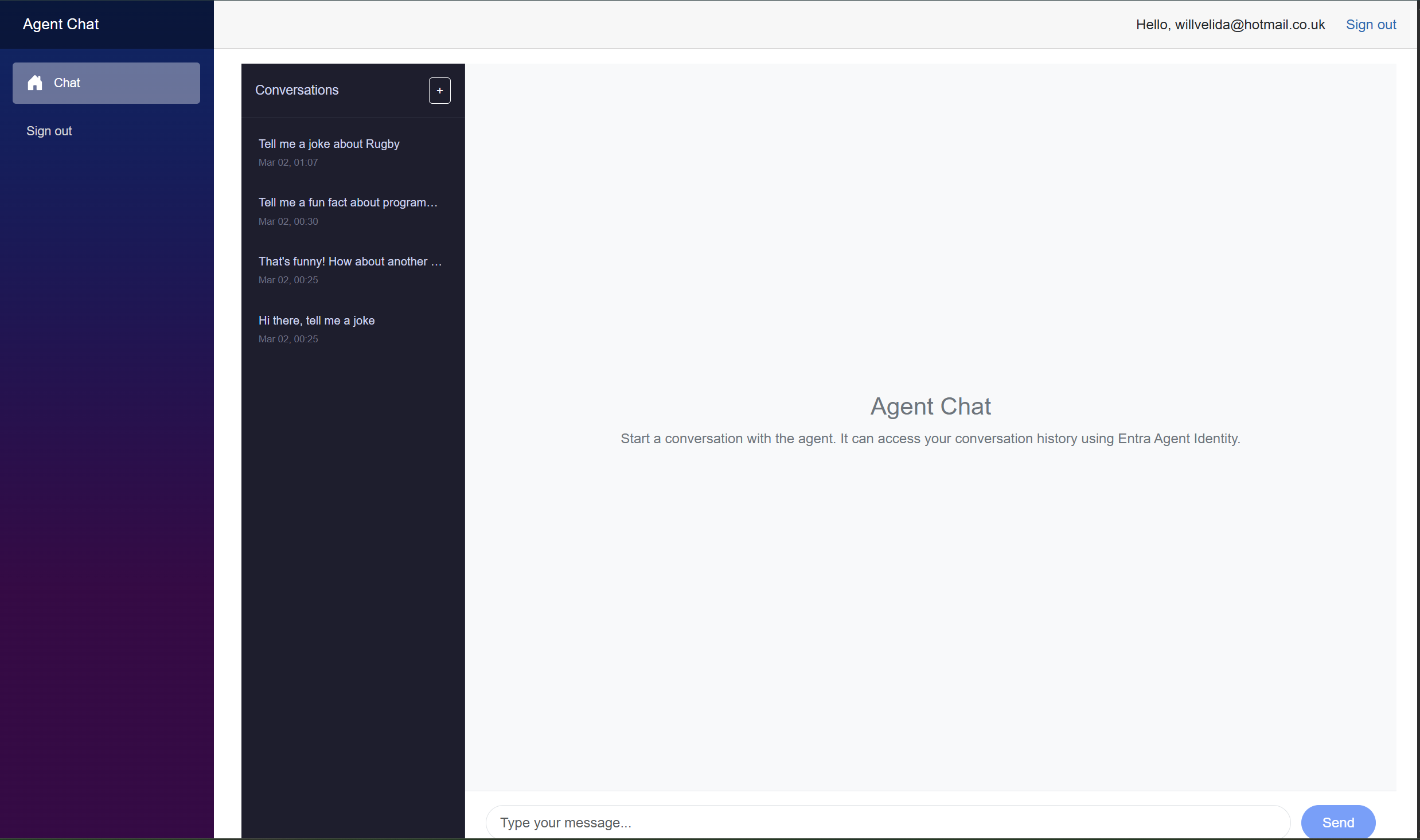
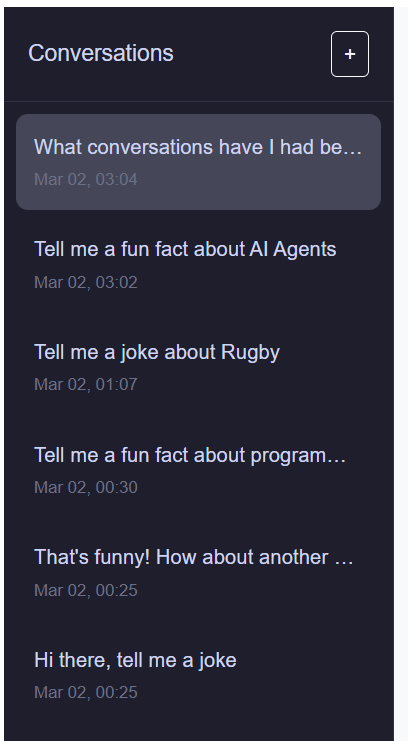
The frontend presents a split-panel layout: a conversation sidebar on the left and the main chat area on the right. The sidebar lists your past conversations with titles and timestamps. The “+” button starts a new session.
Sending a message
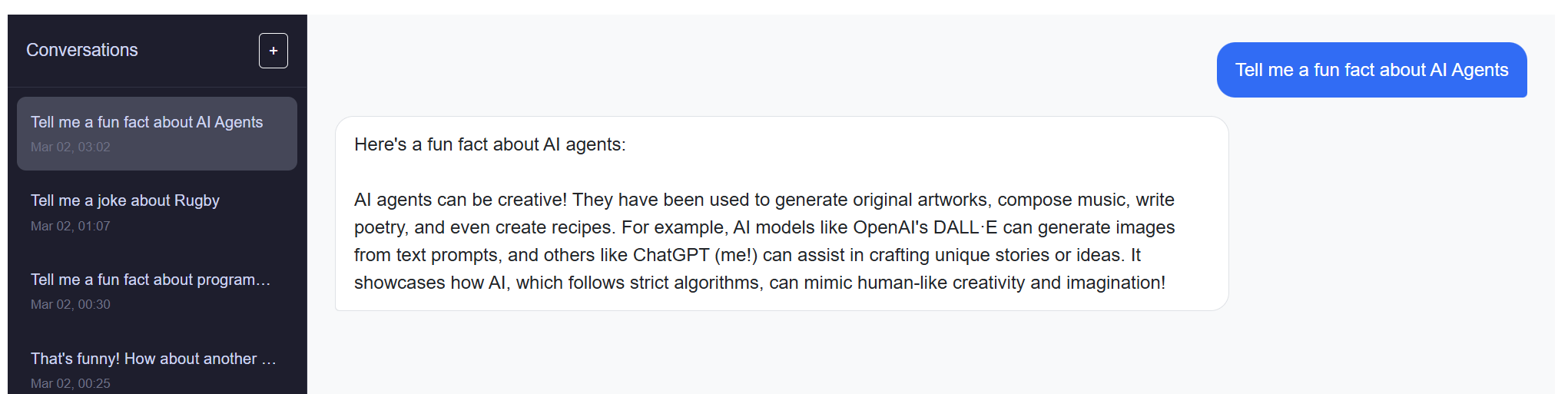
Type a message and hit Send. The frontend posts to /api/chat with your access_agent bearer token. The API saves the message to Cosmos DB (using the agent identity), sends the conversation context to GPT-4o, and returns the assistant’s response.
Tool calling in action
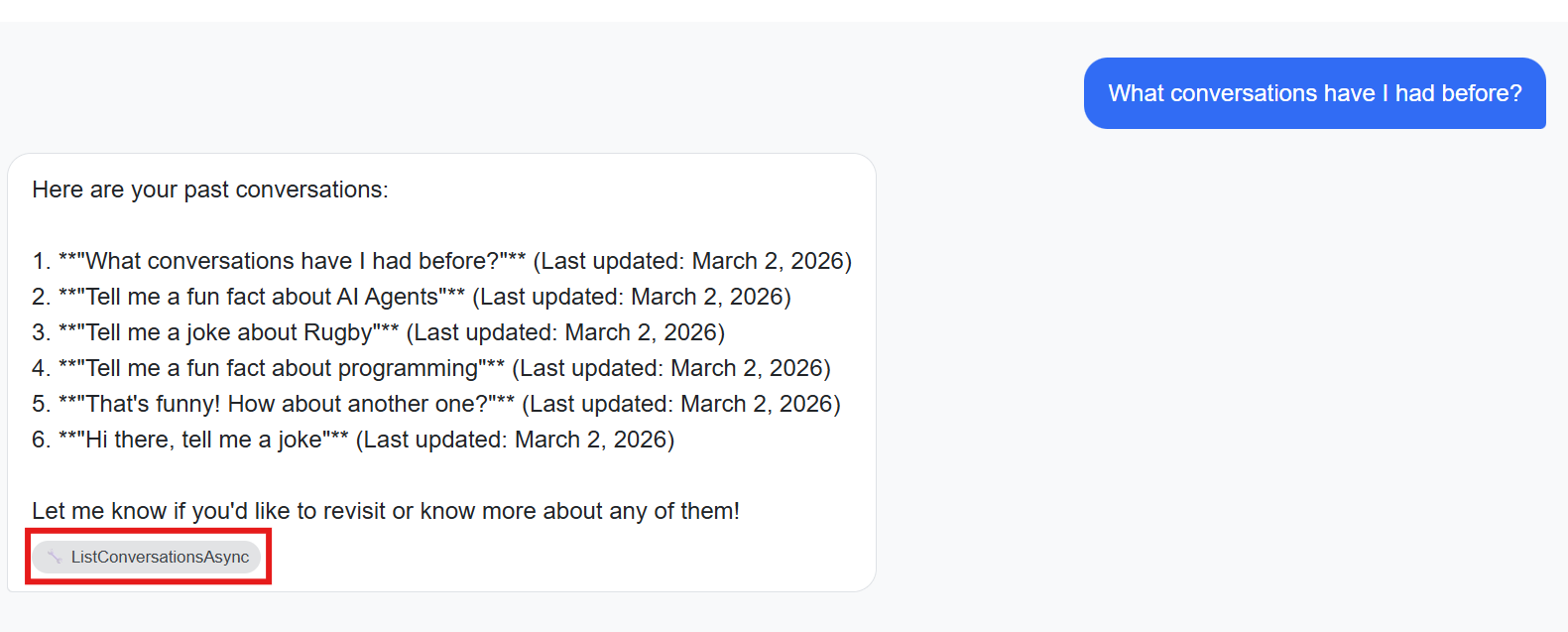
This is where the agent identity pattern becomes visible to the user. Ask something like “What conversations have I had before?” or “Search my past chats for Azure”. The agent invokes its tools (ListConversationsAsync or SearchConversationsAsync) which trigger agent-identity-authenticated Cosmos DB queries behind the scenes.
When the agent uses a tool, the response includes tool badges (the wrench icon) showing which tools were invoked. These badges map directly to the ToolCalls array in the API response.
Resuming a conversation
Click any conversation in the sidebar to reload its full message history from Cosmos DB. The frontend calls GET /api/conversations/{sessionId}, which uses the agent identity to read the conversation document. You can continue the conversation from where you left off.
What’s happening behind the scenes
Every interaction you see in the UI maps to the patterns we’ve covered:
| User action | What happens in the API | Identity used |
|---|---|---|
| Send a message | ConversationService.SaveMessageAsync() → Cosmos DB write |
Agent identity |
| Receive a response | ChatService.ChatAsync() → Azure OpenAI completion |
Managed identity (directly) |
| Agent uses a tool | Framework invokes tool method → ConversationService → Cosmos DB query |
Agent identity |
| Load a conversation | GET /api/conversations/{id} → Cosmos DB read |
Agent identity |
| List conversations | GET /api/conversations → Cosmos DB query |
Agent identity |
Notice the pattern: Azure OpenAI is accessed with the managed identity directly (it’s shared infrastructure), while every Cosmos DB call flows through the agent identity. This is intentional, Cosmos DB is where per-agent identity and RBAC matter.
Observability: Tracking Agent Identity in Application Insights
Giving agents their own identity isn’t just about authorization, we also need to know what happened when agents acted in our system. When something goes wrong (or when an auditor asks), you need to trace which agent accessed which data, when, and in response to what user request. The sample wires this up through two custom telemetry events that tag every operation with the agent identity ID.
Custom telemetry events
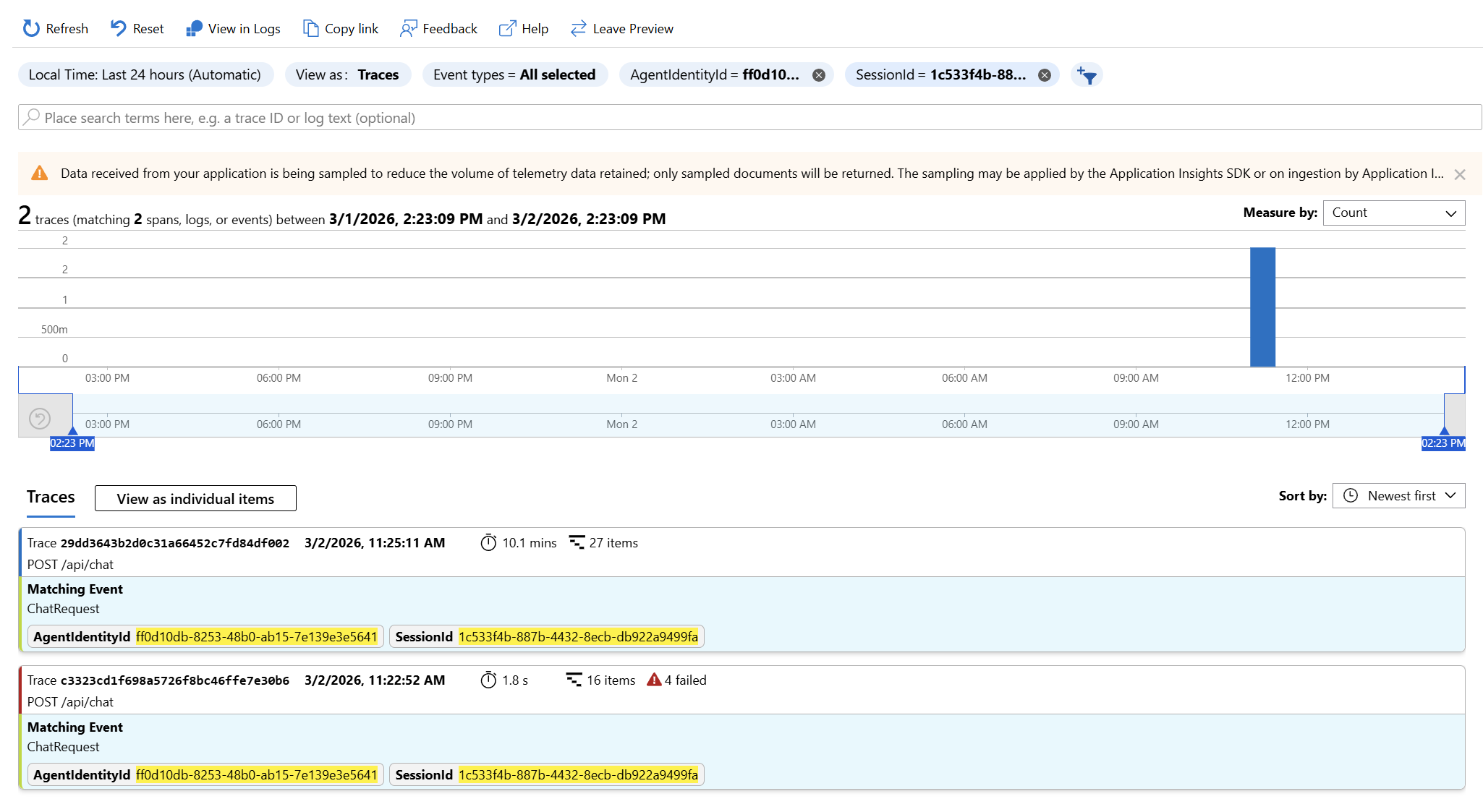
ChatService emits two Application Insights custom events, both including the AgentIdentityId as a custom dimension:
ChatRequest: emitted at the start of every chat request:
_telemetry.TrackEvent("ChatRequest", new Dictionary<string, string>
{
    { "SessionId", sessionId },
    { "AgentIdentityId", _config["AgentIdentity:AgentIdentityId"] ?? "not-configured" }
});
ToolCall: emitted for each tool the LLM invokes during a request:
_telemetry.TrackEvent("ToolCall", new Dictionary<string, string>
{
    { "ToolName", content.Name },
    { "SessionId", sessionId },
    { "AgentIdentityId", agentIdentityId }
});
Because both events share SessionId and AgentIdentityId, you can correlate them in Application Insights to see the full picture: which chat request triggered which tool calls, and which agent identity authenticated those calls.
KQL queries
Here are a few queries you can run in the Application Insights Logs blade to explore agent activity.
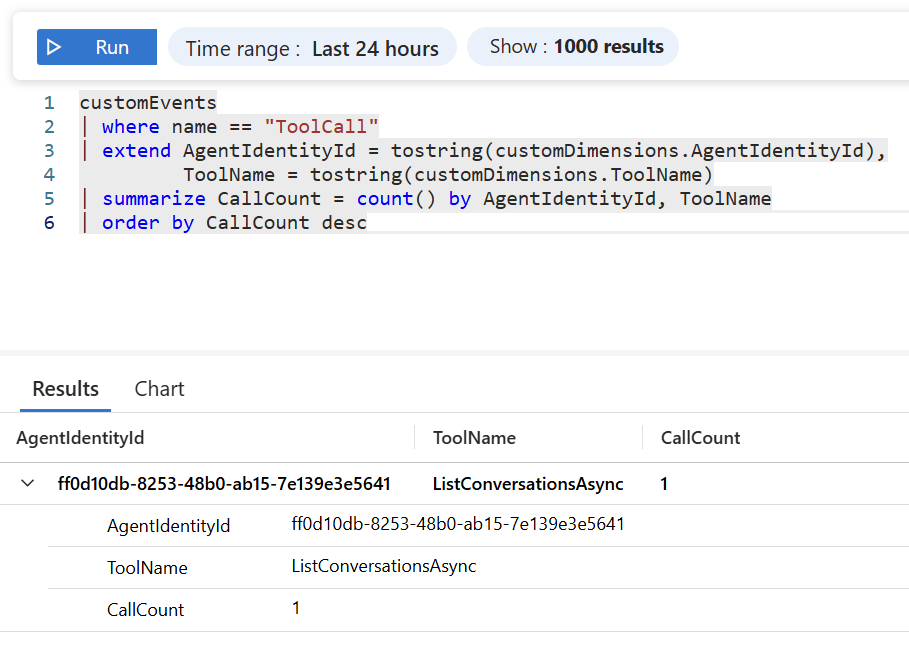
Tool call volume by agent identity:
customEvents
| where name == "ToolCall"
| extend AgentIdentityId = tostring(customDimensions.AgentIdentityId),
         ToolName = tostring(customDimensions.ToolName)
| summarize CallCount = count() by AgentIdentityId, ToolName
| order by CallCount desc
This tells you which tools are being called most frequently and by which agent. If you run multiple agents from the same blueprint, each will have a different AgentIdentityId so you can see their activity independently.
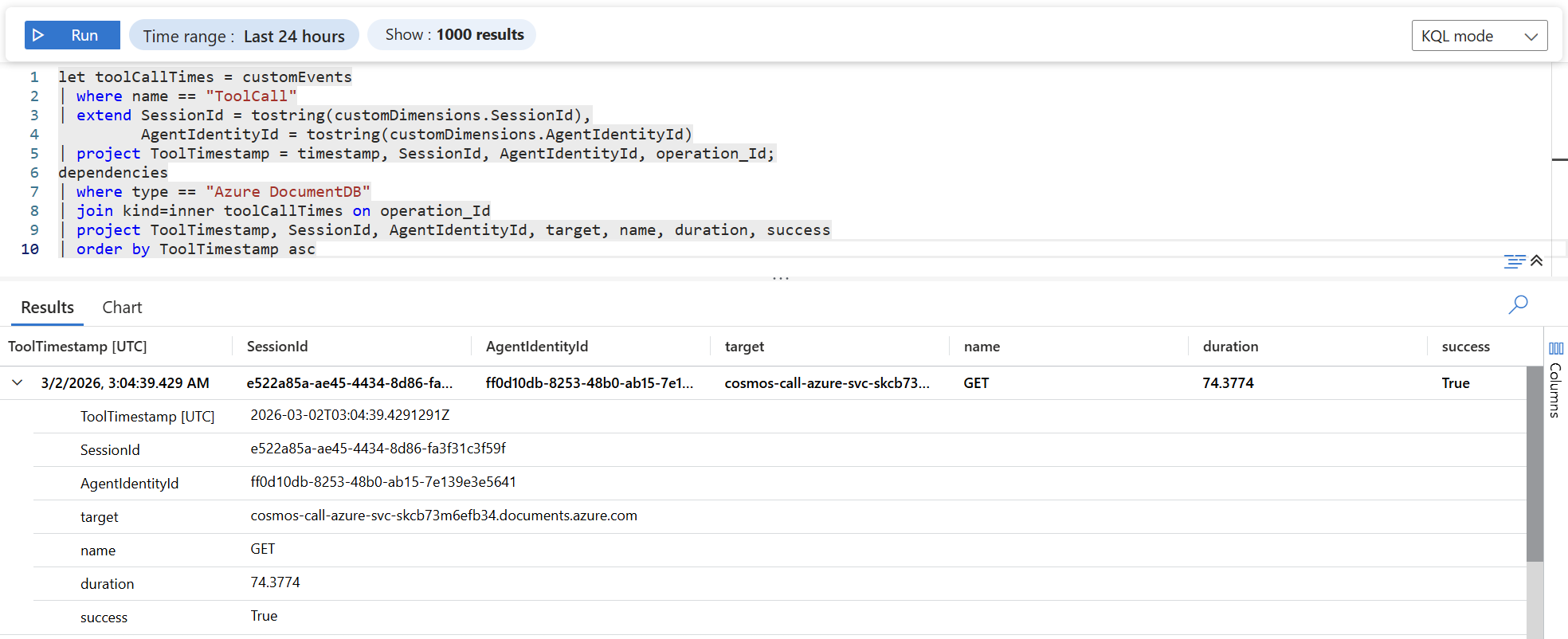
Cosmos DB dependency calls correlated with tool invocations:
let toolCallTimes = customEvents
| where name == "ToolCall"
| extend SessionId = tostring(customDimensions.SessionId),
         AgentIdentityId = tostring(customDimensions.AgentIdentityId)
| project ToolTimestamp = timestamp, SessionId, AgentIdentityId, operation_Id;
dependencies
| where type == "Azure DocumentDB"
| join kind=inner toolCallTimes on operation_Id
| project ToolTimestamp, SessionId, AgentIdentityId, target, name, duration, success
| order by ToolTimestamp asc
This joins the custom ToolCall events with Application Insights’ automatic dependency tracking for Cosmos DB. You get the agent identity ID alongside the actual Cosmos DB request duration, target, and success status bridging the gap between “the agent called a tool” and “here’s the database request that resulted.”
Pairing with Entra sign-in logs
Application Insights shows you the application side. For the identity side, check the Entra ID sign-in logs (service principal sign-ins). When the API acquires an agent identity token via the FIC exchange, Entra logs the sign-in with:
- The blueprint’s application ID as the app
- The agent identity’s service principal as the subject
- The managed identity’s principal ID as the federated credential subject
Together, Application Insights custom events and Entra sign-in logs give you end-to-end traceability: from the user’s chat message, through the LLM’s tool call decision, to the agent identity token acquisition, to the Cosmos DB data access with every step attributable to a specific agent.
Conclusion & Next Steps
We started with a simple question: when an AI agent calls an Azure service, whose identity should it use? The managed identity is the easy answer, but it’s the wrong abstraction. Managed identities represent infrastructure t(Container Apps, VMs, Function Apps). They don’t represent the agent. And as agents become more autonomous, more capable, and more numerous, that distinction matters.
Microsoft Entra Agent ID gives agents a first-class identity in the Microsoft identity platform. The core pattern we walked through in this post boils down to a small set of moving parts:
- A blueprint that serves as the template and credential holder for agent identities.
- A federated identity credential that links your compute’s managed identity to the blueprint, no secrets required.
- An agent identity (a service principal) created from the blueprint, with its own RBAC assignments.
- Three lines of .NET code
AddMicrosoftIdentityAzureTokenCredential(),AddAgentIdentities(), and.WithAgentIdentity(agentIdentityId)that wire the credential into any Azure SDK client.
The result: Cosmos DB sees the agent, not the app. Audit logs attribute data access to a specific agent identity. Multiple agents on the same compute get independent permissions. And not a single client secret is stored or rotated anywhere in the process.
The pattern is portable
Everything we did with Cosmos DB works with any Azure service that accepts a TokenCredential. The MicrosoftIdentityTokenCredential configured with .WithAgentIdentity() is just a standard Azure SDK credential.
You can pass it to:
BlobServiceClientfor Azure StorageSecretClientfor Azure Key VaultServiceBusClientfor Azure Service BusSearchClientfor Azure AI Search- Any other Azure SDK client that takes a
TokenCredentialin its constructor
The identity plumbing stays the same. You create the agent identity once, assign it the appropriate roles on the target resource, and pass the configured credential.
If you want to learn more about topics covered in this blog post, please check out the following:
- Official docs: Call Azure services from your agent using .NET Azure SDK
- Introduction to Entra Agent ID
- Creating Entra Agent ID Blueprints and Identities with PowerShell and .NET
- Microsoft Agent Framework overview
- Sample repo: Azure-Samples/agent-identity-samples
If you have any questions about the content here, please feel free to reach out to me on Bluesky or comment below.
Until next time, Happy coding! 🤓🖥️